> ## Documentation Index
> Fetch the complete documentation index at: https://docs.invopop.com/llms.txt
> Use this file to discover all available pages before exploring further.
# ARCA Supplier onboarding
> Create and register suppliers in Argentina with ARCA.
## Introduction
To issue invoices in Argentina through ARCA, each supplier must generate a digital certificate from the ARCA website and upload it to Invopop. This guide walks you through the complete registration process.
| - | Sandbox | Live |
| ------------------ | ------------------------ | ------------------------------------- |
| **Supplier** | Real company required | Real company required |
| **Certificates** | ARCA sandbox certificate | ARCA production certificate |
| **Punto de venta** | Any number can be used | Must be registered in ARCA before use |
## Setup
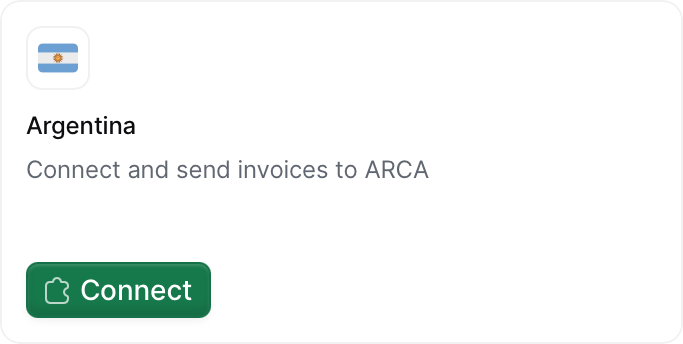 1. Go to **Configuration** → **Apps** in the [Console](https://console.invopop.com).
2. Find **Argentina** in the app list.
3. Click **Connect** to activate the app.
Create a new workflow for registering suppliers. Start with the template below:
This workflow will issue a registration request for a supplier to complete.
Copy and paste into a new [Empty Party workflow](https://console.invopop.com/redirect/workflows/new?template=empty-party) code view.
```json Example ARCA register supplier workflow theme={"system"}
{
"name": "ARCA register supplier",
"description": "Register a supplier with ARCA using their certificate",
"schema": "org/party",
"steps": [
{
"id": "12e637b0-f1fe-11f0-9dd9-c3ebff709d81",
"name": "Set state",
"provider": "silo.state",
"summary": "Set state to `processing`{.state .processing}",
"config": {
"state": "processing"
}
},
{
"id": "fc109350-f1fd-11f0-9dd9-c3ebff709d81",
"name": "Register supplier with ARCA",
"provider": "gov-ar.register"
},
{
"id": "ff7d3160-f1fd-11f0-9dd9-c3ebff709d81",
"name": "Wait for ARCA certificate upload",
"provider": "gov-ar.wait.authorization"
},
{
"id": "0dc4bdb0-f1fe-11f0-9dd9-c3ebff709d81",
"name": "Set state",
"provider": "silo.state",
"summary": "Set state to `registered`{.state .registered}",
"config": {
"state": "registered"
}
}
],
"rescue": [
{
"id": "f1be4e50-f203-11f0-b1d8-c7bdc0d915b1",
"name": "Set state",
"provider": "silo.state",
"summary": "Set state to `error`{.state .error}",
"config": {
"state": "error"
}
}
]
}
```
Before starting, review the [workflows guide](/guides/features/workflows) to understand the general setup process.
In [Console](https://console.invopop.com), create a new workflow and choose [Empty Party workflow](https://console.invopop.com/redirect/workflows/new?template=empty-party) as the base. Then name the workflow with a descriptive label such as "Register in ARCA".
The new workflow will need to perform the following steps:
1. **Set state** — select "Processing".
2. **Register supplier with ARCA** - will generate a unique URL and add it into a `url` key value within the `meta` property. Optionally, add a webhook or email step after this step to notify the supplier.
3. **Wait for ARCA certificate upload** - waits for the supplier to complete the registration process in the ARCA webpage.
4. **Set state** — select "Registered".
Add any additional steps you may need, and save the new workflow.
## Register a supplier
The registration process is the same whether you're issuing invoices on behalf of third parties ([white label](/guides/use-cases/white-label)) or under your own company name.
Via API
1. Go to **Configuration** → **Apps** in the [Console](https://console.invopop.com).
2. Find **Argentina** in the app list.
3. Click **Connect** to activate the app.
Create a new workflow for registering suppliers. Start with the template below:
This workflow will issue a registration request for a supplier to complete.
Copy and paste into a new [Empty Party workflow](https://console.invopop.com/redirect/workflows/new?template=empty-party) code view.
```json Example ARCA register supplier workflow theme={"system"}
{
"name": "ARCA register supplier",
"description": "Register a supplier with ARCA using their certificate",
"schema": "org/party",
"steps": [
{
"id": "12e637b0-f1fe-11f0-9dd9-c3ebff709d81",
"name": "Set state",
"provider": "silo.state",
"summary": "Set state to `processing`{.state .processing}",
"config": {
"state": "processing"
}
},
{
"id": "fc109350-f1fd-11f0-9dd9-c3ebff709d81",
"name": "Register supplier with ARCA",
"provider": "gov-ar.register"
},
{
"id": "ff7d3160-f1fd-11f0-9dd9-c3ebff709d81",
"name": "Wait for ARCA certificate upload",
"provider": "gov-ar.wait.authorization"
},
{
"id": "0dc4bdb0-f1fe-11f0-9dd9-c3ebff709d81",
"name": "Set state",
"provider": "silo.state",
"summary": "Set state to `registered`{.state .registered}",
"config": {
"state": "registered"
}
}
],
"rescue": [
{
"id": "f1be4e50-f203-11f0-b1d8-c7bdc0d915b1",
"name": "Set state",
"provider": "silo.state",
"summary": "Set state to `error`{.state .error}",
"config": {
"state": "error"
}
}
]
}
```
Before starting, review the [workflows guide](/guides/features/workflows) to understand the general setup process.
In [Console](https://console.invopop.com), create a new workflow and choose [Empty Party workflow](https://console.invopop.com/redirect/workflows/new?template=empty-party) as the base. Then name the workflow with a descriptive label such as "Register in ARCA".
The new workflow will need to perform the following steps:
1. **Set state** — select "Processing".
2. **Register supplier with ARCA** - will generate a unique URL and add it into a `url` key value within the `meta` property. Optionally, add a webhook or email step after this step to notify the supplier.
3. **Wait for ARCA certificate upload** - waits for the supplier to complete the registration process in the ARCA webpage.
4. **Set state** — select "Registered".
Add any additional steps you may need, and save the new workflow.
## Register a supplier
The registration process is the same whether you're issuing invoices on behalf of third parties ([white label](/guides/use-cases/white-label)) or under your own company name.
Via API
Use the [Create an entry](/api-ref/silo/entries/create-an-entry-put) endpoint to create a new supplier [party](https://docs.gobl.org/draft-0/org/party). The required fields are:
* `name` - company name
* `tax_id` - tax identification number
Set the `folder` parameter to `suppliers` so the entry appears in the suppliers section. The entry will have an `Empty` status initially.
Via Console
Navigate to **Parties > Suppliers** and click on + New supplier. The following json code will appear in the editor:
```json theme={"system"}
{
"$schema": "https://gobl.org/draft-0/org/party",
"name": "", // Name of the company or individual
"tax_id": {
"code": "", // 11 digit CUIT
"country": "" // "AR"
}
}
```
Fill in the necessary information and click on Build and then Save.
Via API
Use the [Create a job](/api-ref/transform/jobs/create-a-job-post) endpoint with the following payload:
```json theme={"system"}
// POST https://api.invopop.com/transform/v1/jobs
{
"workflow_id": "",
"silo_entry_id": ""
}
```
You can obtain the `workflow_id` from the workflows list, and the `silo_entry_id` from the **Meta** tab in the supplier entry.
Via Console
Open the supplier entry, click Run workflow, and select **Register in ARCA**.
The supplier's status will change to `Processing` while awaiting registration completion.
Your own company
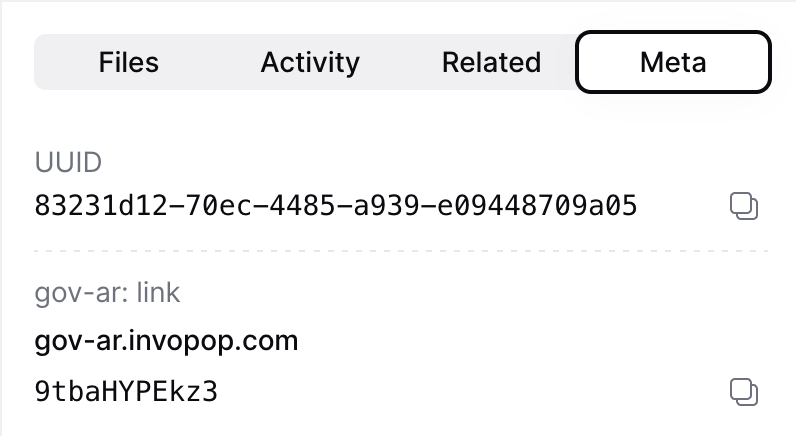
In the Console, open the supplier entry and navigate to the **Meta** tab. Click on **gov-ar.invopop.com** to launch the registration wizard.
 Third-party companies
To send the registration link to your customer, add a webhook step before **Wait for ARCA certificate upload**.
The webhook payload includes the `siloEntryId`. Use the [Fetch an Entry endpoint](/api-ref/silo/entries/fetch-an-entry) to retrieve the full entry, including the `meta` object containing the registration link.
```json Example webhook response expandable theme={"system"}
data: {
"meta": [
{
"id": "...",
"created_at": "2025-11-05T15:10:28.132Z",
"updated_at": "2025-11-14T15:56:53.727Z",
"owner_id": "...",
"entry_id": "...",
"src": "gov-ar",
"key": "link",
"ref": "EgDeG3pDBDe",
"link_url": "https://gov-ar.invopop.com/reg/EgDeG3pDBDe",
"link_scope": "public",
"indexed": true,
"shared": true
}
]
}
```
Send the `link_url` to your customer to complete their registration.
## Complete the registration wizard
The wizard will guide the user to create a certificate in ARCA's portal and upload it to Invopop. The steps differ between sandbox and production. For your convenience, we provide guides in Spanish which you can share with your customers or adapt to your own needs:
* **Sandbox**: [ARCA certificate wizard (in Spanish)](/guides/ar-certificates-sandbox)
* **Production**: [ARCA certificate wizard (in Spanish)](/guides/ar-certificates-production)
Once you've successfully uploaded and validated the certificate, the supplier is ready to issue invoices.
## Point of sales (Punto de venta)
In Invopop, the point of sale is specified in the `series` field of the invoice. Once the registration process is complete, in **sandbox** you can use any point of sale number, while **production** requires registering each point of sale in ARCA before using it. The registration process varies depending on your tax classification:
* **Monotributista**: A simplified tax regime for small businesses and freelancers in Argentina
* **Registered taxpayer** (Responsable Inscripto): Standard tax regime for companies registered for VAT
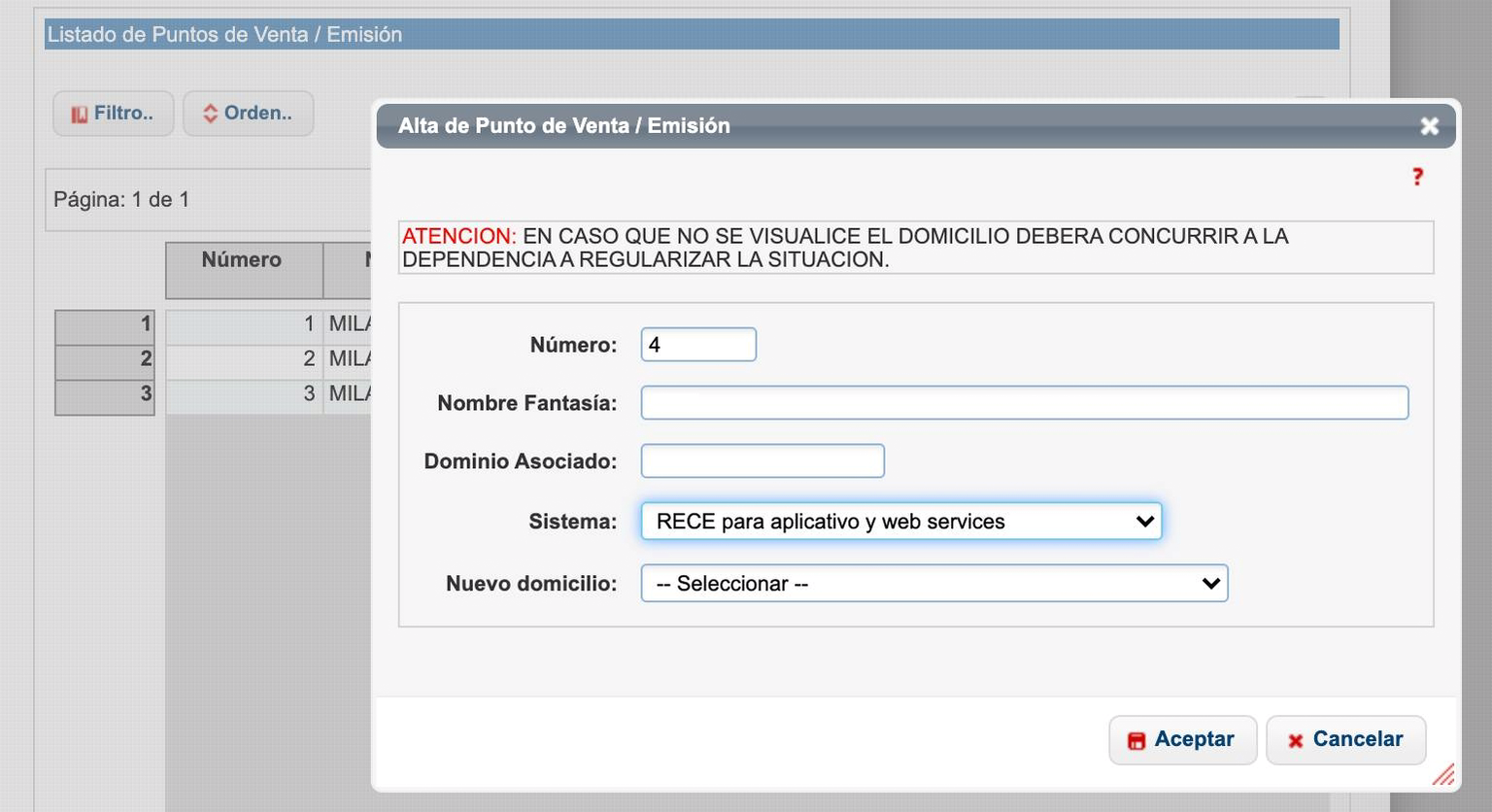
Follow these steps to register a point of sale in production:
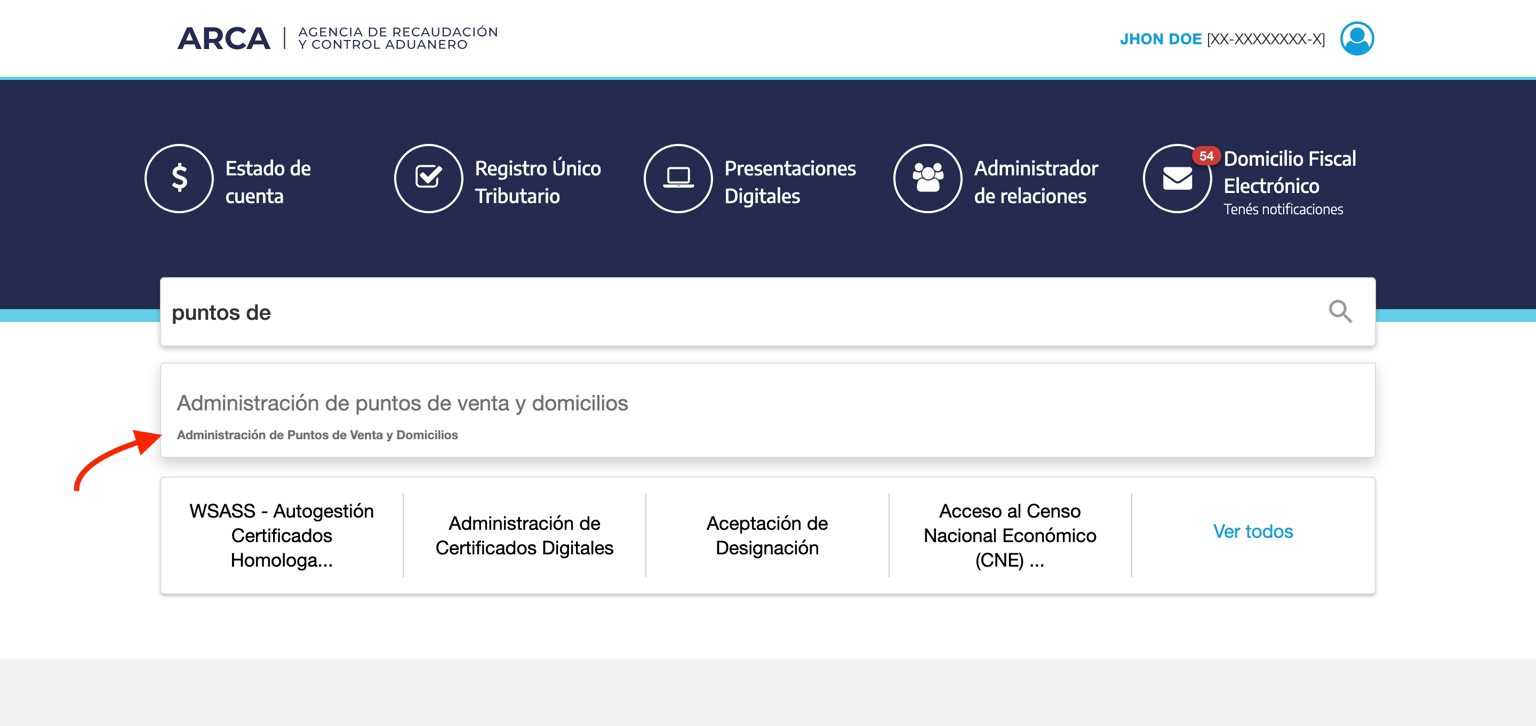
In ARCA, go to **Administración de puntos de venta y domicilios** (Point of Sale and Address Administration).
 Select **A/B/M de puntos de venta**, then click **Agregar nuevo punto de venta** (Add new point of sale). Choose the appropriate option for your tax classification:
**For monotributista**: Select "Factura electronica - Monotributo - Web Service"
Select **A/B/M de puntos de venta**, then click **Agregar nuevo punto de venta** (Add new point of sale). Choose the appropriate option for your tax classification:
**For monotributista**: Select "Factura electronica - Monotributo - Web Service"
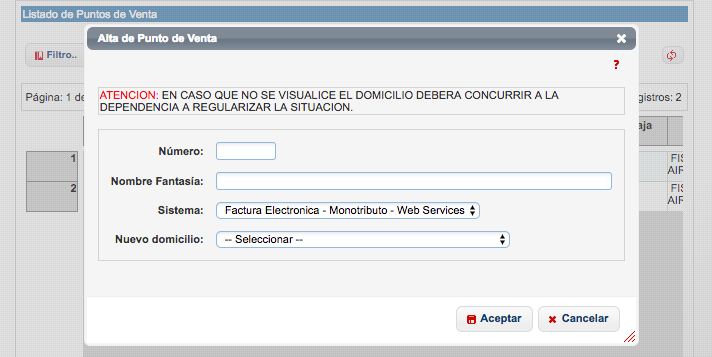 **For registered taxpayers**: Select "RECE para aplicativo y Web Service"
 ## FAQ
Yes, to issue invoices through ARCA's web services, you need to upload your CSD (Certificado de Sello Digital) to Invopop. This certificate is issued by ARCA and is used to authenticate your requests to their system.
The registration process involves:
1. Generating a certificate signing request (CSR) with ARCA
2. Downloading the certificate and private key
3. Uploading them to Invopop through the supplier registration flow
See our [ARCA Supplier Onboarding guide](/guides/ar-arca-suppliers) for detailed instructions.
To register a supplier for ARCA invoicing, you need:
**Company Information:**
* Legal name (Razón Social)
* CUIT (tax ID)
* Fiscal address
* Economic activity code
* Tax classification (Responsable Inscripto or Monotributista)
**Digital Certificates:**
* CSD certificate (.crt file)
* Private key (.key file)
* Key password (if applicable)
See our [ARCA Supplier Onboarding guide](/guides/ar-arca-suppliers) for detailed registration instructions.
The supplier registration process typically takes a few minutes once the supplier has their digital certificates ready. The steps are:
1. Generate a registration link in Invopop
2. Supplier uploads their certificate and key
3. System validates the credentials with ARCA
4. Registration is complete
The longest part is usually obtaining the digital certificate from ARCA, which can take a few days if the supplier hasn't done it before.
Yes, a single supplier can have multiple puntos de venta. Each punto de venta operates independently with its own sequential numbering for each invoice type.
When registering a supplier, you specify which punto de venta to use. You must register each punto de venta with ARCA in production before using it to issue invoices.
Digital certificates issued by ARCA have an expiration date. When a certificate is about to expire, the supplier must generate a new one through ARCA's portal and upload it to Invopop.
To update an expired certificate:
1. Obtain a new certificate from ARCA
2. Use the supplier registration workflow to upload the new certificate
3. The new certificate will replace the old one
It's recommended to renew certificates before they expire to avoid disruption to your invoicing process.
Yes, Invopop supports white-label (B2B2B) operations in Argentina. This means you can issue invoices on behalf of your clients using their CUIT and digital certificates.
This is particularly useful for platforms and software providers who want to offer invoicing services to their customers without requiring them to integrate directly with ARCA.
Each supplier (your client) needs to complete the registration process with their own certificates, and then you can issue invoices on their behalf through Invopop's workflows.
A CSD (Certificado de Sello Digital) issued by ARCA, consisting of a `.crt` X.509 certificate and the matching `.key` private key. Both files are uploaded together; the certificate must be valid (not expired, not revoked) and authorized for the ARCA web services you intend to use — WSFE for Factura A, B, C and E, and WSCT for tourism invoices (Factura T).
Generate a registration link via the ARCA Register Supplier workflow, send it to the supplier, and have them upload their CSD certificate and private key. Once validated, the supplier is ready to issue. See the [ARCA Supplier Onboarding guide](/guides/ar-arca-suppliers).
The CSD certificate (`.crt`) and private key (`.key`) are stored encrypted. Invopop only uses them to authenticate ARCA web service requests (WSFE and WSCT) on the supplier's behalf and never returns the key in API responses.
More available in our [Argentina FAQ](/faq/argentina) section
***
| | |
| ---------- | ----------------------------------------------------------------------------------------------------------------------------------------------------------------------------------------------------------------------------------------------------- |
| Compliance | [Invoicing compliance in Argentina](/compliance/argentina)
## FAQ
Yes, to issue invoices through ARCA's web services, you need to upload your CSD (Certificado de Sello Digital) to Invopop. This certificate is issued by ARCA and is used to authenticate your requests to their system.
The registration process involves:
1. Generating a certificate signing request (CSR) with ARCA
2. Downloading the certificate and private key
3. Uploading them to Invopop through the supplier registration flow
See our [ARCA Supplier Onboarding guide](/guides/ar-arca-suppliers) for detailed instructions.
To register a supplier for ARCA invoicing, you need:
**Company Information:**
* Legal name (Razón Social)
* CUIT (tax ID)
* Fiscal address
* Economic activity code
* Tax classification (Responsable Inscripto or Monotributista)
**Digital Certificates:**
* CSD certificate (.crt file)
* Private key (.key file)
* Key password (if applicable)
See our [ARCA Supplier Onboarding guide](/guides/ar-arca-suppliers) for detailed registration instructions.
The supplier registration process typically takes a few minutes once the supplier has their digital certificates ready. The steps are:
1. Generate a registration link in Invopop
2. Supplier uploads their certificate and key
3. System validates the credentials with ARCA
4. Registration is complete
The longest part is usually obtaining the digital certificate from ARCA, which can take a few days if the supplier hasn't done it before.
Yes, a single supplier can have multiple puntos de venta. Each punto de venta operates independently with its own sequential numbering for each invoice type.
When registering a supplier, you specify which punto de venta to use. You must register each punto de venta with ARCA in production before using it to issue invoices.
Digital certificates issued by ARCA have an expiration date. When a certificate is about to expire, the supplier must generate a new one through ARCA's portal and upload it to Invopop.
To update an expired certificate:
1. Obtain a new certificate from ARCA
2. Use the supplier registration workflow to upload the new certificate
3. The new certificate will replace the old one
It's recommended to renew certificates before they expire to avoid disruption to your invoicing process.
Yes, Invopop supports white-label (B2B2B) operations in Argentina. This means you can issue invoices on behalf of your clients using their CUIT and digital certificates.
This is particularly useful for platforms and software providers who want to offer invoicing services to their customers without requiring them to integrate directly with ARCA.
Each supplier (your client) needs to complete the registration process with their own certificates, and then you can issue invoices on their behalf through Invopop's workflows.
A CSD (Certificado de Sello Digital) issued by ARCA, consisting of a `.crt` X.509 certificate and the matching `.key` private key. Both files are uploaded together; the certificate must be valid (not expired, not revoked) and authorized for the ARCA web services you intend to use — WSFE for Factura A, B, C and E, and WSCT for tourism invoices (Factura T).
Generate a registration link via the ARCA Register Supplier workflow, send it to the supplier, and have them upload their CSD certificate and private key. Once validated, the supplier is ready to issue. See the [ARCA Supplier Onboarding guide](/guides/ar-arca-suppliers).
The CSD certificate (`.crt`) and private key (`.key`) are stored encrypted. Invopop only uses them to authenticate ARCA web service requests (WSFE and WSCT) on the supplier's behalf and never returns the key in API responses.
More available in our [Argentina FAQ](/faq/argentina) section
***
| | |
| ---------- | ----------------------------------------------------------------------------------------------------------------------------------------------------------------------------------------------------------------------------------------------------- |
| Compliance | [Invoicing compliance in Argentina](/compliance/argentina)
[Compliance timeline](/timelines/argentina) |
| Apps | [Argentina](/apps/argentina) |
| Guides | [ARCA Supplier onboarding](/guides/ar-arca-suppliers)
[ARCA Invoices](/guides/ar-arca-invoices) |
| GOBL | [Argentina Tax Regime](https://docs.gobl.org/regimes/ar)
[Argentina ARCA Addon](https://docs.gobl.org/addons/ar-arca-v4) |
Ask and answer questions about invoicing in Argentina →