> ## Documentation Index
> Fetch the complete documentation index at: https://docs.invopop.com/llms.txt
> Use this file to discover all available pages before exploring further.
# VERI*FACTU Onboarding Guide
> Create and register suppliers in Spain with VERI*FACTU.
## Introduction
The Spanish Tax Agency ([AEAT](https://sede.agenciatributaria.gob.es)) requires that companies and self-employed individuals (autónomos) formally authorize Invopop to issue invoices on their behalf. To comply with this regulation, the company's legal representative or *autónomo* must sign an agreement granting Invopop consent to generate and manage invoices in their name. This signed authorization ensures that all invoicing activities carried out by Invopop are legally valid and recognized by the AEAT.
For this process, the supplier can sign the agreement PDF with a valid [digital certificate](https://www.sede.fnmt.gob.es/certificados/persona-fisica), such as one issued by the FNMT, or a handwritten signature with a company stamp (*sello de empresa*), in which case the user must provide a valid ID such as DNI, NIE or passport. In the case of self-employed individuals (*autónomos*) a company stamp is not required.
This guide will...
1. Walk you through the process of creating the workflows necessary to onboard yourself and/or your suppliers (in a [white-label setup](https://docs.invopop.com/guides/use-cases/white-label))
2. The process of completing the supplier onboarding wizard,
3. Explaining the approval process and what to do in case of rejection.
| - | Sandbox | Live |
| ------------------------- | ----------------------------------------- | --------------------------------------------------- |
| **Supplier registration** | Required (automated acceptance/rejection) | Required (documents reviewed in less than 72 hours) |
| **Environment** | Entorno de preproducción AEAT | Live environment |
## Set-up
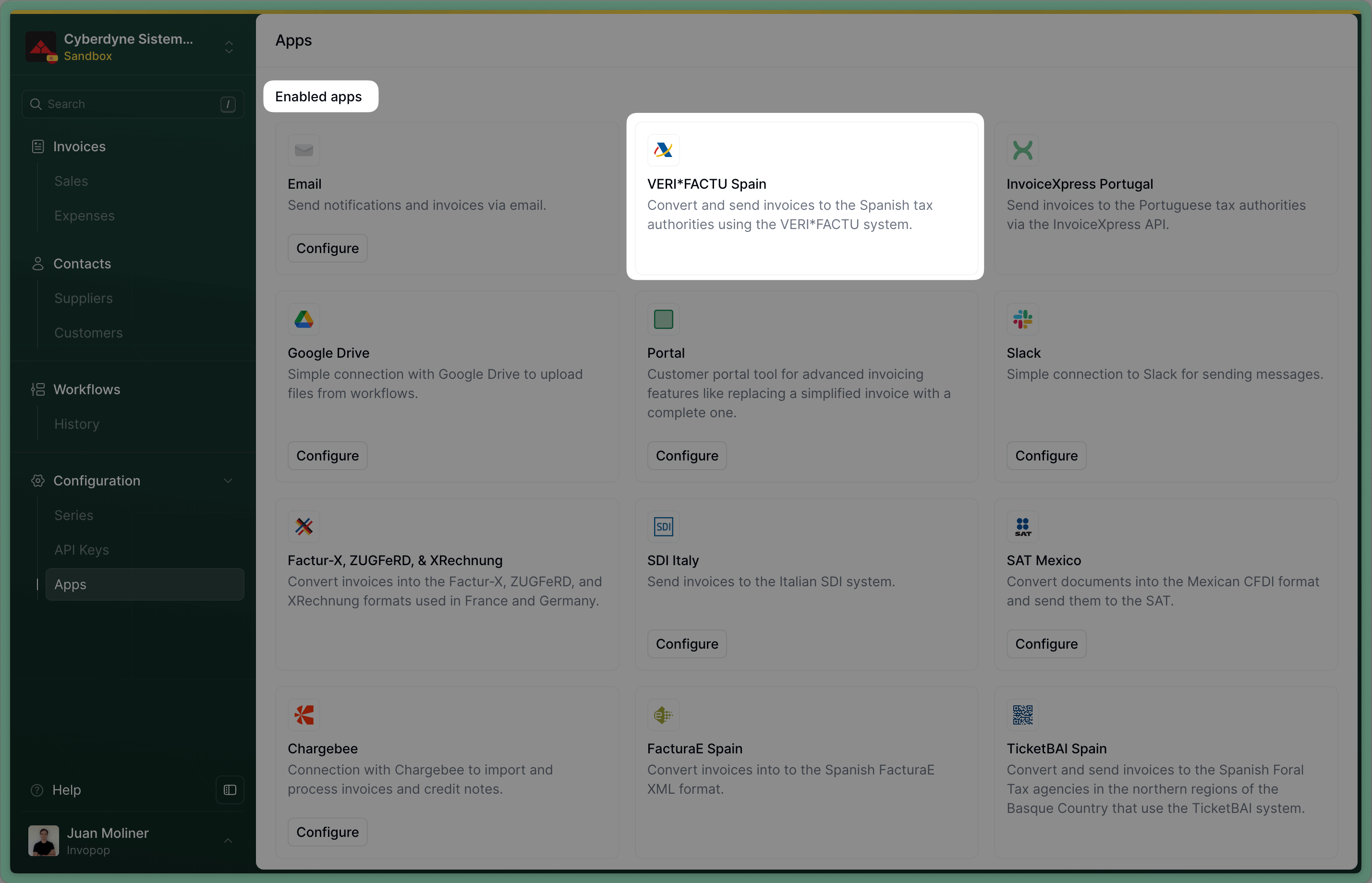
1. Go to **Configuration** → **Apps** in the [Console](https://console.invopop.com).
2. Find **VERI\*FACTU Spain** in the app list.
3. Click **Connect** to activate the app.
 Create a new workflow for registering suppliers. Start with the template below:
This workflow will issue a registration request for a supplier to complete.
Copy and paste into a new [Empty Party workflow](https://console.invopop.com/redirect/workflows/new?template=empty-party) code view.
```json Example VERI*FACTU register supplier workflow theme={"system"}
{
"name": "VERI*FACTU register supplier",
"description": "Register a supplier with VERI*FACTU",
"schema": "org/party",
"steps": [
{
"id": "74b9cf20-da92-11f0-864b-8d842f7d4ab2",
"name": "Verify Spanish Tax ID",
"provider": "gov-es.lookup.verify"
},
{
"id": "554c7040-66d7-11f0-a392-dfb6c99d6698",
"name": "Register supplier with VERI*FACTU",
"provider": "verifactu.register",
"next": []
},
{
"id": "62148880-66d7-11f0-a392-dfb6c99d6698",
"name": "Set state",
"provider": "silo.state",
"summary": "Set state to `processing`{.state .processing}",
"config": {
"state": "processing"
},
"next": []
},
{
"id": "5b924600-66d7-11f0-a392-dfb6c99d6698",
"name": "Wait for VERI*FACTU supplier agreement upload",
"provider": "verifactu.wait.upload",
"next": []
},
{
"id": "6bec1080-66d7-11f0-a392-dfb6c99d6698",
"name": "Set state",
"provider": "silo.state",
"summary": "Set state to `registered`{.state .registered}",
"config": {
"state": "registered"
},
"next": []
},
{
"id": "670d1dc0-66d7-11f0-a392-dfb6c99d6698",
"name": "Wait for VERI*FACTU supplier approval",
"provider": "verifactu.wait.approval",
"next": []
}
],
"rescue": [
{
"id": "4be625f0-da6d-11f0-864b-8d842f7d4ab2",
"name": "Unregister supplier from VERI*FACTU",
"provider": "verifactu.unregister"
},
{
"id": "535bf030-da6d-11f0-864b-8d842f7d4ab2",
"name": "Set state",
"provider": "silo.state",
"summary": "Set state to `rejected`{.state .rejected}",
"config": {
"state": "rejected"
}
}
]
}
```
Before starting, review the [workflows guide](/guides/features/workflows) to understand the general setup process.
In [Console](https://console.invopop.com), create a new workflow and choose [Empty Party workflow](https://console.invopop.com/redirect/workflows/new?template=empty-party) as the base. Then name the workflow with a descriptive label such as "VERI\*FACTU Supplier Registration".
The new workflow will need to perform the following steps:
1. **Register supplier** - will generate a unique URL and add it into a `url` key value within the `meta` property. You would add a webhook after this step to notify the supplier.
2. **Set state** — select "Processing".
3. **Wait for supplier registration** - waits for the supplier to upload the required documents (signed agreement and ID). The supplier will be entitled to issue invoices through VERI\*FACTU immediately after the documents are uploaded.
4. **Set state** — select "Registered".
5. **Wait for supplier approval** - In live environments, Invopop will review the documents provided by the supplier in less than 72 hours. In sandbox, you can configure the workflow step to accept or reject providers. Open rejection the workflow will error with a `KO` and the reason for rejection can be reviewed in the Supplier or in the executed job. The supplier's invoice issuing entitlement will be revoked immediately.
6. **Set state** — select "Registered"
Finally, in the Error Handling area, add the following steps:
1. **Set state** — select `Rejected`.
2. **Unregister supplier** - will clear the registration attempt allowing you to re-register them later.
Add any additional steps you may need, and save the new workflow.
### Create a supplier entry
Whether you issue invoices on behalf of third parties ([white label](/guides/use-cases/white-label)) or under your own name, the process is essentially the same.
Use the [Create an entry](/api-ref/silo/entries/create-an-entry-put) endpoint to upload a new supplier [party](https://docs.gobl.org/draft-0/org/party) (example below). Strictly required fields are company `name` and `tax_id` (the supplier will be able to supplement the information as [required by the AEAT](https://sede.agenciatributaria.gob.es/static_files/Sede/Procedimiento_ayuda/ZC01/Mod/Anexo_I_mod_otorg_prof_trib.pdf)). To reduce user input errors, it's recommended filling the fields as required by the AEAT:
To register a company supplier in Spain you must provide:
* **Company information**: name, NIF (tax identification number), and address
* **Legal representative information**: full name, government ID type and number (DNI, NIE, or passport), and address
The legal representative is the person authorized to sign the representation agreement on behalf of the company.
The supplier must be [previously registered](https://docs.invopop.com/guides/es-verifactu-supplier#create-a-supplier-entry) with the tax authority before invoices can be issued on their behalf.
```json Spain supplier example theme={"system"}
{
"$schema": "https://gobl.org/draft-0/org/party",
"name": "Invopop S.L.",
"tax_id": {
"country": "ES",
"code": "B85905495"
},
"people": [
{
"name": {
"given": "Juan",
"surname": "Pérez González"
},
"identities": [
{
"key": "national",
"code": "123456789A"
}
],
"addresses": [
{
"num": "10",
"street": "Calle Ejemplo",
"locality": "Madrid",
"region": "Madrid",
"code": "28020",
"country": "ES"
}
]
}
],
"addresses": [
{
"num": "42",
"street": "Calle Pradillo",
"locality": "Madrid",
"region": "Madrid",
"code": "28002",
"country": "ES"
}
],
"emails": [
{
"addr": "billing@example.com"
}
]
}
```
An *autónomo* is self-employed individuals in Spain who operate as sole proprietors. To register them, a NIF (tax id number) with the corresponding full name and address must be provided.
Unlike company suppliers, autónomos do not require separate legal representative information since the individual is the authorized signatory.
The supplier must be [previously registered](https://docs.invopop.com/guides/es-verifactu-supplier#create-a-supplier-entry) with the tax authority before invoices can be issued on their behalf.
```json Spain autónomo supplier example theme={"system"}
{
"$schema": "https://gobl.org/draft-0/org/party",
"name": "Juan Pérez González",
"tax_id": {
"country": "ES",
"code": "B85905495"
},
"addresses": [
{
"num": "42",
"street": "Calle Pradillo",
"locality": "Madrid",
"region": "Madrid",
"code": "28002",
"country": "ES"
}
],
"emails": [
{
"addr": "autonomo@example.com"
}
]
}
```
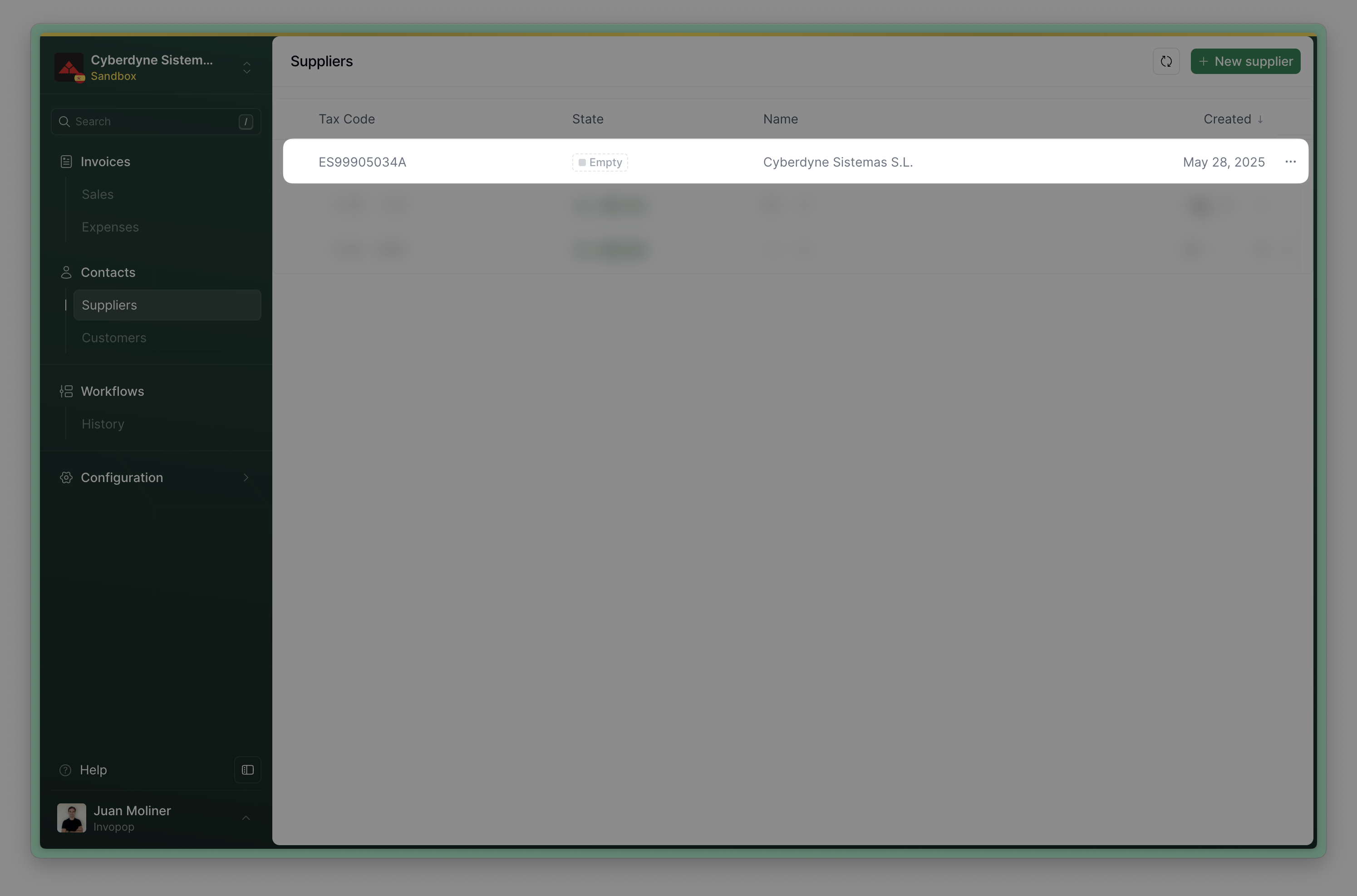
Set the `folder` to `suppliers` to have the party appear in this section. It should appear with an `Empty` status unless set otherwise.
Create a new workflow for registering suppliers. Start with the template below:
This workflow will issue a registration request for a supplier to complete.
Copy and paste into a new [Empty Party workflow](https://console.invopop.com/redirect/workflows/new?template=empty-party) code view.
```json Example VERI*FACTU register supplier workflow theme={"system"}
{
"name": "VERI*FACTU register supplier",
"description": "Register a supplier with VERI*FACTU",
"schema": "org/party",
"steps": [
{
"id": "74b9cf20-da92-11f0-864b-8d842f7d4ab2",
"name": "Verify Spanish Tax ID",
"provider": "gov-es.lookup.verify"
},
{
"id": "554c7040-66d7-11f0-a392-dfb6c99d6698",
"name": "Register supplier with VERI*FACTU",
"provider": "verifactu.register",
"next": []
},
{
"id": "62148880-66d7-11f0-a392-dfb6c99d6698",
"name": "Set state",
"provider": "silo.state",
"summary": "Set state to `processing`{.state .processing}",
"config": {
"state": "processing"
},
"next": []
},
{
"id": "5b924600-66d7-11f0-a392-dfb6c99d6698",
"name": "Wait for VERI*FACTU supplier agreement upload",
"provider": "verifactu.wait.upload",
"next": []
},
{
"id": "6bec1080-66d7-11f0-a392-dfb6c99d6698",
"name": "Set state",
"provider": "silo.state",
"summary": "Set state to `registered`{.state .registered}",
"config": {
"state": "registered"
},
"next": []
},
{
"id": "670d1dc0-66d7-11f0-a392-dfb6c99d6698",
"name": "Wait for VERI*FACTU supplier approval",
"provider": "verifactu.wait.approval",
"next": []
}
],
"rescue": [
{
"id": "4be625f0-da6d-11f0-864b-8d842f7d4ab2",
"name": "Unregister supplier from VERI*FACTU",
"provider": "verifactu.unregister"
},
{
"id": "535bf030-da6d-11f0-864b-8d842f7d4ab2",
"name": "Set state",
"provider": "silo.state",
"summary": "Set state to `rejected`{.state .rejected}",
"config": {
"state": "rejected"
}
}
]
}
```
Before starting, review the [workflows guide](/guides/features/workflows) to understand the general setup process.
In [Console](https://console.invopop.com), create a new workflow and choose [Empty Party workflow](https://console.invopop.com/redirect/workflows/new?template=empty-party) as the base. Then name the workflow with a descriptive label such as "VERI\*FACTU Supplier Registration".
The new workflow will need to perform the following steps:
1. **Register supplier** - will generate a unique URL and add it into a `url` key value within the `meta` property. You would add a webhook after this step to notify the supplier.
2. **Set state** — select "Processing".
3. **Wait for supplier registration** - waits for the supplier to upload the required documents (signed agreement and ID). The supplier will be entitled to issue invoices through VERI\*FACTU immediately after the documents are uploaded.
4. **Set state** — select "Registered".
5. **Wait for supplier approval** - In live environments, Invopop will review the documents provided by the supplier in less than 72 hours. In sandbox, you can configure the workflow step to accept or reject providers. Open rejection the workflow will error with a `KO` and the reason for rejection can be reviewed in the Supplier or in the executed job. The supplier's invoice issuing entitlement will be revoked immediately.
6. **Set state** — select "Registered"
Finally, in the Error Handling area, add the following steps:
1. **Set state** — select `Rejected`.
2. **Unregister supplier** - will clear the registration attempt allowing you to re-register them later.
Add any additional steps you may need, and save the new workflow.
### Create a supplier entry
Whether you issue invoices on behalf of third parties ([white label](/guides/use-cases/white-label)) or under your own name, the process is essentially the same.
Use the [Create an entry](/api-ref/silo/entries/create-an-entry-put) endpoint to upload a new supplier [party](https://docs.gobl.org/draft-0/org/party) (example below). Strictly required fields are company `name` and `tax_id` (the supplier will be able to supplement the information as [required by the AEAT](https://sede.agenciatributaria.gob.es/static_files/Sede/Procedimiento_ayuda/ZC01/Mod/Anexo_I_mod_otorg_prof_trib.pdf)). To reduce user input errors, it's recommended filling the fields as required by the AEAT:
To register a company supplier in Spain you must provide:
* **Company information**: name, NIF (tax identification number), and address
* **Legal representative information**: full name, government ID type and number (DNI, NIE, or passport), and address
The legal representative is the person authorized to sign the representation agreement on behalf of the company.
The supplier must be [previously registered](https://docs.invopop.com/guides/es-verifactu-supplier#create-a-supplier-entry) with the tax authority before invoices can be issued on their behalf.
```json Spain supplier example theme={"system"}
{
"$schema": "https://gobl.org/draft-0/org/party",
"name": "Invopop S.L.",
"tax_id": {
"country": "ES",
"code": "B85905495"
},
"people": [
{
"name": {
"given": "Juan",
"surname": "Pérez González"
},
"identities": [
{
"key": "national",
"code": "123456789A"
}
],
"addresses": [
{
"num": "10",
"street": "Calle Ejemplo",
"locality": "Madrid",
"region": "Madrid",
"code": "28020",
"country": "ES"
}
]
}
],
"addresses": [
{
"num": "42",
"street": "Calle Pradillo",
"locality": "Madrid",
"region": "Madrid",
"code": "28002",
"country": "ES"
}
],
"emails": [
{
"addr": "billing@example.com"
}
]
}
```
An *autónomo* is self-employed individuals in Spain who operate as sole proprietors. To register them, a NIF (tax id number) with the corresponding full name and address must be provided.
Unlike company suppliers, autónomos do not require separate legal representative information since the individual is the authorized signatory.
The supplier must be [previously registered](https://docs.invopop.com/guides/es-verifactu-supplier#create-a-supplier-entry) with the tax authority before invoices can be issued on their behalf.
```json Spain autónomo supplier example theme={"system"}
{
"$schema": "https://gobl.org/draft-0/org/party",
"name": "Juan Pérez González",
"tax_id": {
"country": "ES",
"code": "B85905495"
},
"addresses": [
{
"num": "42",
"street": "Calle Pradillo",
"locality": "Madrid",
"region": "Madrid",
"code": "28002",
"country": "ES"
}
],
"emails": [
{
"addr": "autonomo@example.com"
}
]
}
```
Set the `folder` to `suppliers` to have the party appear in this section. It should appear with an `Empty` status unless set otherwise.
 * **Via API** - Send the supplier to the registration workflow using the [Create a job](/api-ref/transform/jobs/create-a-job-post) endpoint using the `ID`s of the **silo entry** and **supplier registration workflow**.
* **Via Console** - From the Silo Entry select "Run workflow" and select the **supplier registration workflow**.
The supplier's status will change to `Processing` while waiting for supplier registration and verification.
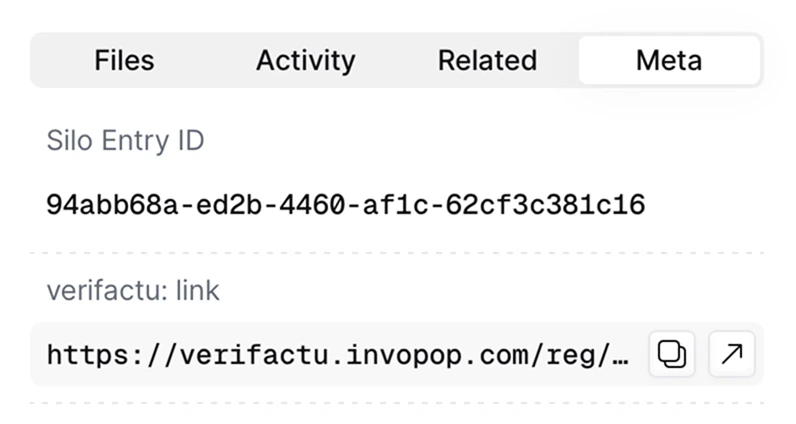
Within the silo entry in console, select **Meta** and then click **verifactu.invopop.com**. This will launch the registration wizard for your company.
* **Via API** - Send the supplier to the registration workflow using the [Create a job](/api-ref/transform/jobs/create-a-job-post) endpoint using the `ID`s of the **silo entry** and **supplier registration workflow**.
* **Via Console** - From the Silo Entry select "Run workflow" and select the **supplier registration workflow**.
The supplier's status will change to `Processing` while waiting for supplier registration and verification.
Within the silo entry in console, select **Meta** and then click **verifactu.invopop.com**. This will launch the registration wizard for your company.
 Add a webhook before the **Wait for supplier registration** step to obtain the registration link. The webhook payload contains the `siloEntryId`, not the `meta` object directly. Use the [Fetch an Entry endpoint](/api-ref/silo/entries/fetch-an-entry) to retrieve the invoice and extract the `meta` object from the response.
The `meta` object looks like this:
```
data: {
...
"meta": [
{
"id": "...",
"created_at": "2025-11-05T15:10:28.132Z",
"updated_at": "2025-11-14T15:56:53.727Z",
"owner_id": "...",
"entry_id": "...",
"src": "verifactu",
"key": "link",
"ref": "EgDeG3pDBDe",
"link_url": "https://verifactu.invopop.com/reg/EgDeG3pDBDe",
"link_scope": "public",
"indexed": true,
"shared": true
}
]
}
```
Forward the `link_url` to your customer.
The supplier will be entitled to issue invoices as soon as they submit their documentation, and will only be revoked if there was a problem with their documentation.
Invopop's commitment is to review agreement documentation in less than 72 hours. However, in practice this will happen in less than 24 hours if the wizard is completed in workdays.
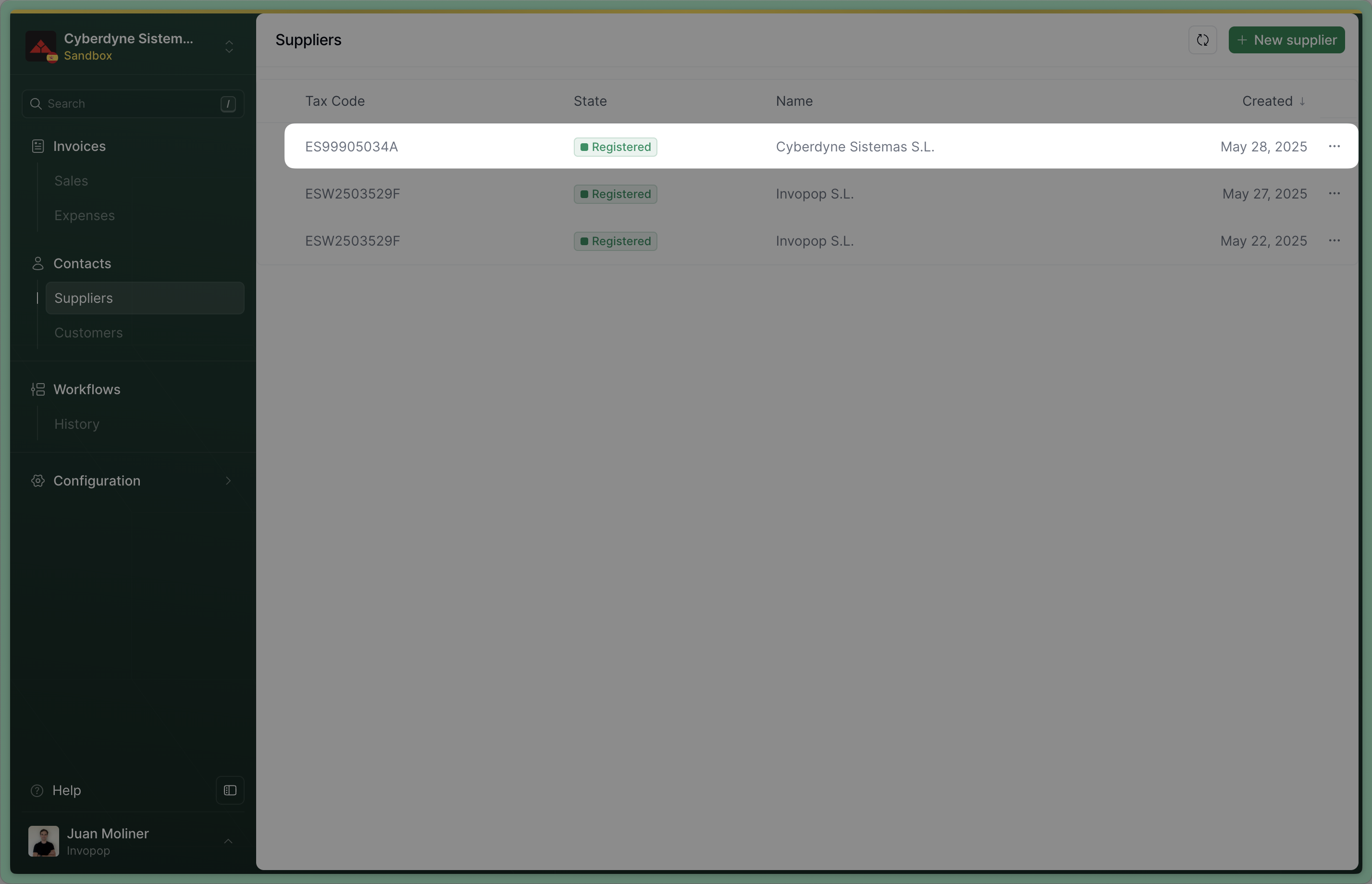
Once registration wizard has been completed, the supplier's status will change to `Registered`. If not successful because the supplier did not complete the process or their documentation was rejected, the status will change to `Rejected`, and you can inspect the job history of this document to see the reason.
Add a webhook before the **Wait for supplier registration** step to obtain the registration link. The webhook payload contains the `siloEntryId`, not the `meta` object directly. Use the [Fetch an Entry endpoint](/api-ref/silo/entries/fetch-an-entry) to retrieve the invoice and extract the `meta` object from the response.
The `meta` object looks like this:
```
data: {
...
"meta": [
{
"id": "...",
"created_at": "2025-11-05T15:10:28.132Z",
"updated_at": "2025-11-14T15:56:53.727Z",
"owner_id": "...",
"entry_id": "...",
"src": "verifactu",
"key": "link",
"ref": "EgDeG3pDBDe",
"link_url": "https://verifactu.invopop.com/reg/EgDeG3pDBDe",
"link_scope": "public",
"indexed": true,
"shared": true
}
]
}
```
Forward the `link_url` to your customer.
The supplier will be entitled to issue invoices as soon as they submit their documentation, and will only be revoked if there was a problem with their documentation.
Invopop's commitment is to review agreement documentation in less than 72 hours. However, in practice this will happen in less than 24 hours if the wizard is completed in workdays.
Once registration wizard has been completed, the supplier's status will change to `Registered`. If not successful because the supplier did not complete the process or their documentation was rejected, the status will change to `Rejected`, and you can inspect the job history of this document to see the reason.
 If a supplier's agreement documentation is rejected and you need to onboard them again, follow the instructions in [what happens if a supplier validation is rejected](#what-happens-if-a-supplier-validation-is-rejected)
## How VERI\*FACTU supplier registration works
The process is best explained looking at the workflow steps:
If a supplier's agreement documentation is rejected and you need to onboard them again, follow the instructions in [what happens if a supplier validation is rejected](#what-happens-if-a-supplier-validation-is-rejected)
## How VERI\*FACTU supplier registration works
The process is best explained looking at the workflow steps:
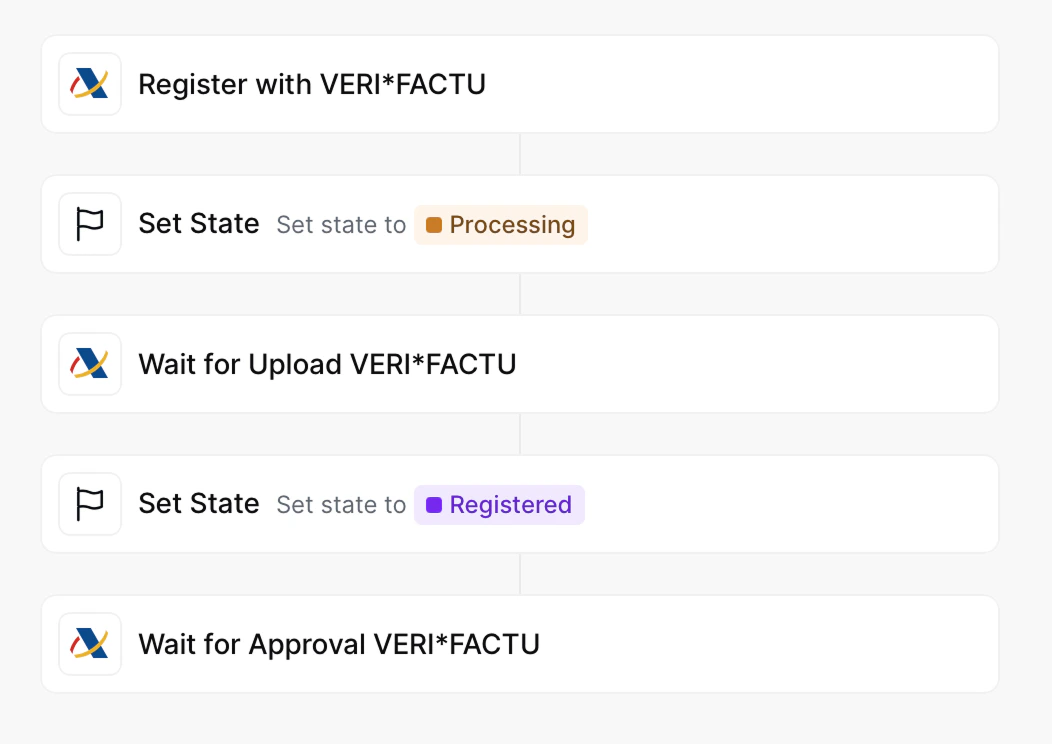 1. **Register supplier** will generate a unique URL and add it into a `url` key value within the `meta` property. You would add a webhook after this step to notify the supplier.
2. **Set state to Processing** labels the silo entry so you know it's in process of registration.
3. **Wait for supplier registration** waits for the supplier to upload the required documents (signed agreement and ID). The supplier will be entitled to issue invoices through VERI\*FACTU immediately after the documents are uploaded.
4. **Set state to Registered** labels the silo entry so you know registration is complete.
5. **Wait for supplier approval** In live environments, Invopop will review the documents provided by the supplier in less than 72 hours. In sandbox, you can configure the workflow step to accept or reject providers. Open rejection the workflow will error with a `KO` and the reason for rejection can be reviewed in the Supplier or in the executed job. The supplier's invoice issuing entitlement will be revoked immediately.
In sandbox "Wait for supplier approval" can be configured to accept or reject suppliers.
**Error flow:** if the supplier's documentation is rejected, or the supplier does not complete the registration within the job's time limit (100 days) a `KO` will be generated, triggering the error flow. Then these steps will be run:
1. **Unregister supplier from VERI\*FACTU** will clean up all registration processes and entitlements. You will be able to re-register the party later.
2. **Set state to Rejected** labels the silo entry so you know the registration was rejected (due to timeout or incorrect documentation).
## Register a Supplier
Suppliers need to provide the following documents for Invopop to issue invoices on their behalf:
1. A signed [direct representation agreement](https://sede.agenciatributaria.gob.es/static_files/Sede/Procedimiento_ayuda/ZC01/Mod/Anexo_I_mod_otorg_prof_trib.pdf). If the supplier is a self-employed individual (*autónomo*), stamping is unnecessary.
2. A copy of signatory's fiscal ID (DNI/NIE or passport in the case of non-residents) if the agreement is not signed with a valid [digital certificate](https://www.sede.fnmt.gob.es/certificados/persona-fisica) such as one from the FNMT.
These documents can be collected through a multi-step web form (*wizard*) which enabled through the *Supplier registration workflow* created during [setup](#set-up) or [sent via the API](https://docs.invopop.com/api-ref/apps/verifactu/agreement-upload) if you wish to have control over the process.
### Onboard suppliers through the supplier registration wizard
The supplier registration wizard walks you (or your customers) through the necessary legal requirements to issue VERI\*FACTU invoices. Each issuer must submit a signed representation agreement between Invopop and the issuer, along with documentation proving their legal authority to enter into such an agreement.
Once you run the Supplier Registration Workflow, you will find the `link_url` in the `meta` property of the supplier entry. Here is an example API response:
```
data: {
...
"meta": [
{
"id": "...",
"created_at": "2025-11-05T15:10:28.132Z",
"updated_at": "2025-11-14T15:56:53.727Z",
"owner_id": "...",
"entry_id": "...",
"src": "verifactu",
"key": "link",
"ref": "EgDeG3pDBDe",
"link_url": "https://verifactu.invopop.com/reg/EgDeG3pDBDe",
"link_scope": "public",
"indexed": true,
"shared": true
}
]
}
```
In console, you will find the link in the `Meta` tab in the right sidebar of the supplier's entry.
This wizard can be embedded as an `iframe` to onboard your customers without leaving your product or platform.
1. **Register supplier** will generate a unique URL and add it into a `url` key value within the `meta` property. You would add a webhook after this step to notify the supplier.
2. **Set state to Processing** labels the silo entry so you know it's in process of registration.
3. **Wait for supplier registration** waits for the supplier to upload the required documents (signed agreement and ID). The supplier will be entitled to issue invoices through VERI\*FACTU immediately after the documents are uploaded.
4. **Set state to Registered** labels the silo entry so you know registration is complete.
5. **Wait for supplier approval** In live environments, Invopop will review the documents provided by the supplier in less than 72 hours. In sandbox, you can configure the workflow step to accept or reject providers. Open rejection the workflow will error with a `KO` and the reason for rejection can be reviewed in the Supplier or in the executed job. The supplier's invoice issuing entitlement will be revoked immediately.
In sandbox "Wait for supplier approval" can be configured to accept or reject suppliers.
**Error flow:** if the supplier's documentation is rejected, or the supplier does not complete the registration within the job's time limit (100 days) a `KO` will be generated, triggering the error flow. Then these steps will be run:
1. **Unregister supplier from VERI\*FACTU** will clean up all registration processes and entitlements. You will be able to re-register the party later.
2. **Set state to Rejected** labels the silo entry so you know the registration was rejected (due to timeout or incorrect documentation).
## Register a Supplier
Suppliers need to provide the following documents for Invopop to issue invoices on their behalf:
1. A signed [direct representation agreement](https://sede.agenciatributaria.gob.es/static_files/Sede/Procedimiento_ayuda/ZC01/Mod/Anexo_I_mod_otorg_prof_trib.pdf). If the supplier is a self-employed individual (*autónomo*), stamping is unnecessary.
2. A copy of signatory's fiscal ID (DNI/NIE or passport in the case of non-residents) if the agreement is not signed with a valid [digital certificate](https://www.sede.fnmt.gob.es/certificados/persona-fisica) such as one from the FNMT.
These documents can be collected through a multi-step web form (*wizard*) which enabled through the *Supplier registration workflow* created during [setup](#set-up) or [sent via the API](https://docs.invopop.com/api-ref/apps/verifactu/agreement-upload) if you wish to have control over the process.
### Onboard suppliers through the supplier registration wizard
The supplier registration wizard walks you (or your customers) through the necessary legal requirements to issue VERI\*FACTU invoices. Each issuer must submit a signed representation agreement between Invopop and the issuer, along with documentation proving their legal authority to enter into such an agreement.
Once you run the Supplier Registration Workflow, you will find the `link_url` in the `meta` property of the supplier entry. Here is an example API response:
```
data: {
...
"meta": [
{
"id": "...",
"created_at": "2025-11-05T15:10:28.132Z",
"updated_at": "2025-11-14T15:56:53.727Z",
"owner_id": "...",
"entry_id": "...",
"src": "verifactu",
"key": "link",
"ref": "EgDeG3pDBDe",
"link_url": "https://verifactu.invopop.com/reg/EgDeG3pDBDe",
"link_scope": "public",
"indexed": true,
"shared": true
}
]
}
```
In console, you will find the link in the `Meta` tab in the right sidebar of the supplier's entry.
This wizard can be embedded as an `iframe` to onboard your customers without leaving your product or platform.
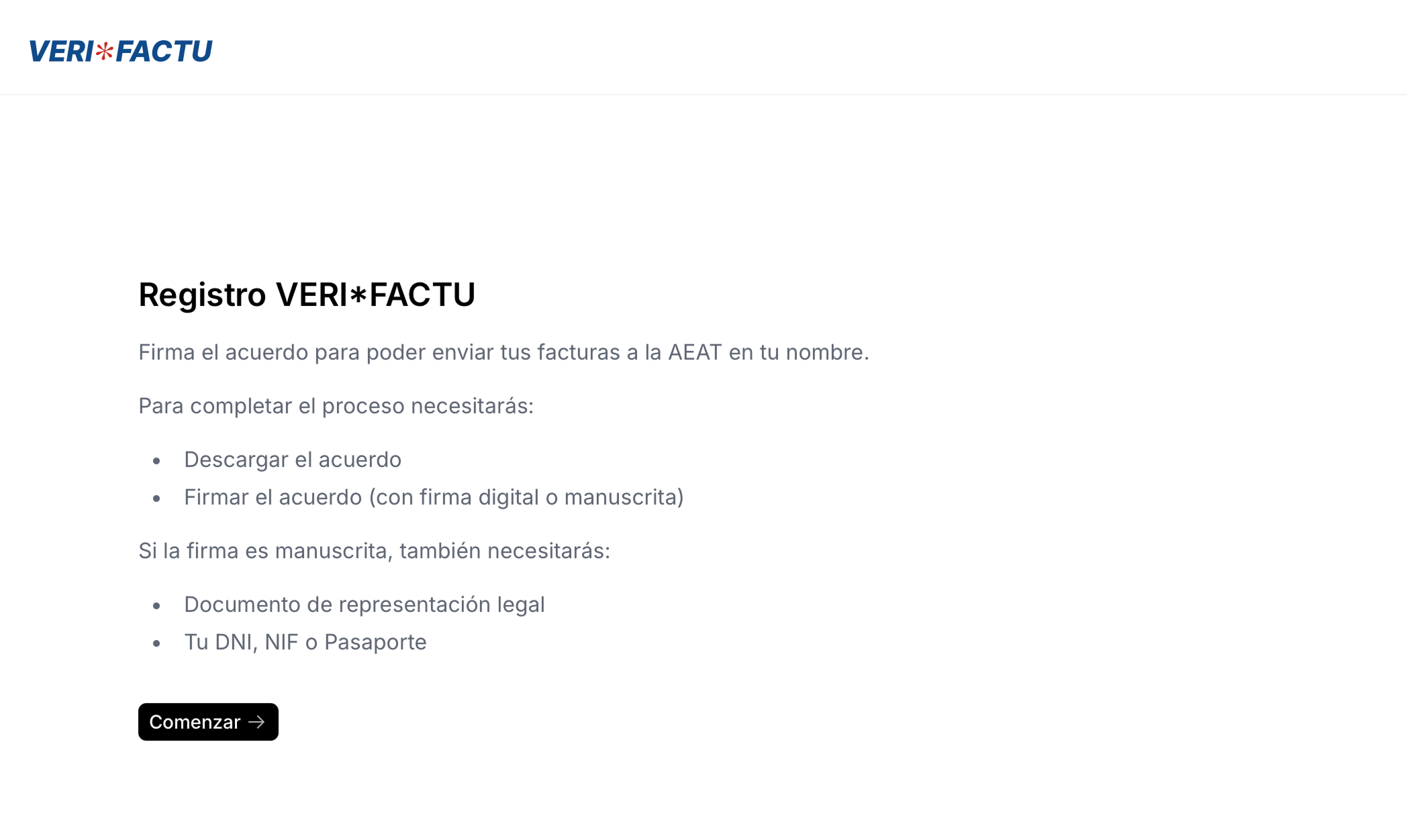 Your customers will be met with the first page detailing the necessary documentation required for the process.
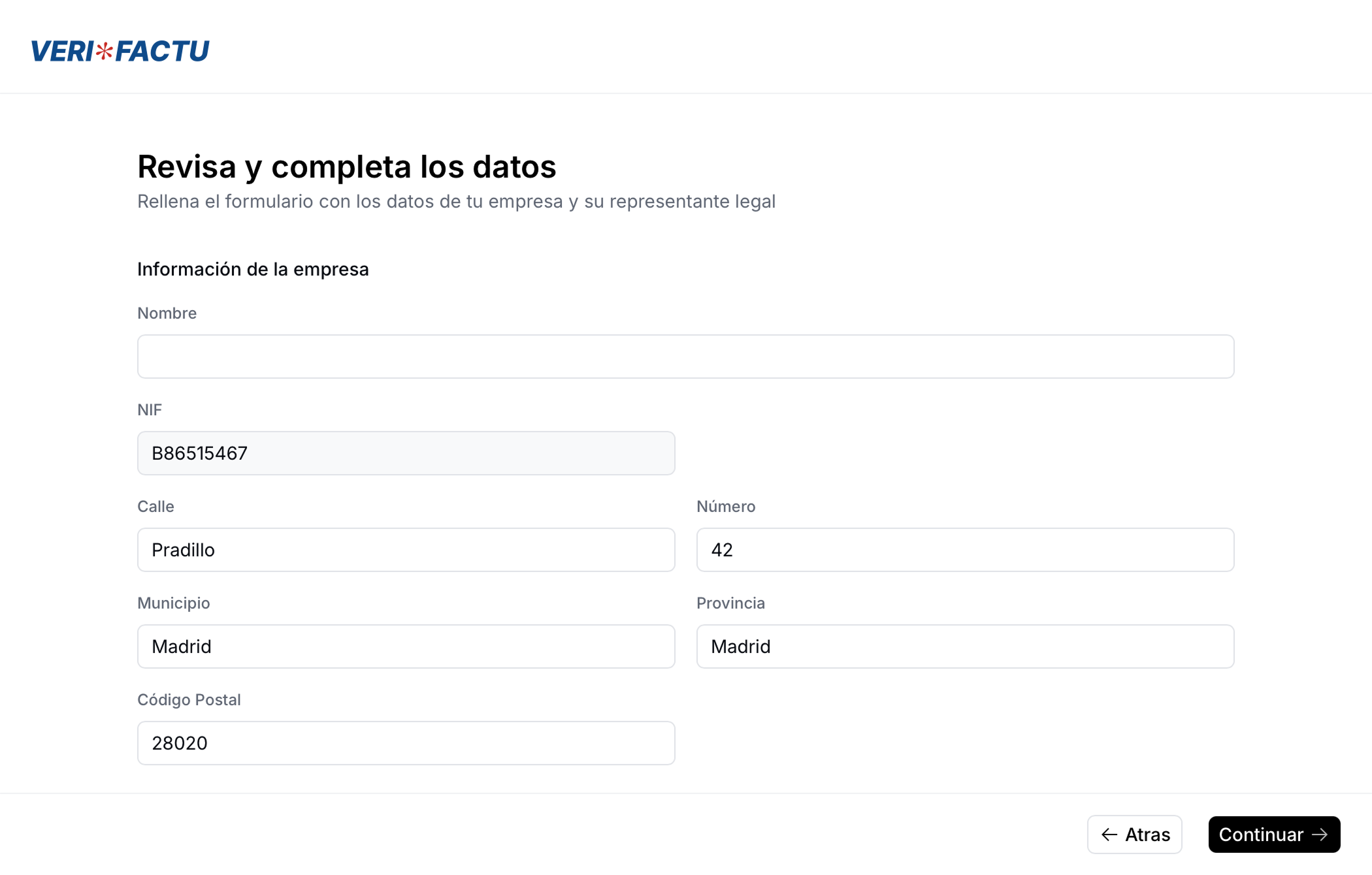 The user can edit personal or company information. If the user is a self-employed individual, only the company information block will appear. Such individuals should enter their real name in the "Nombre" field, as this is matched by the AEAT against their tax id.
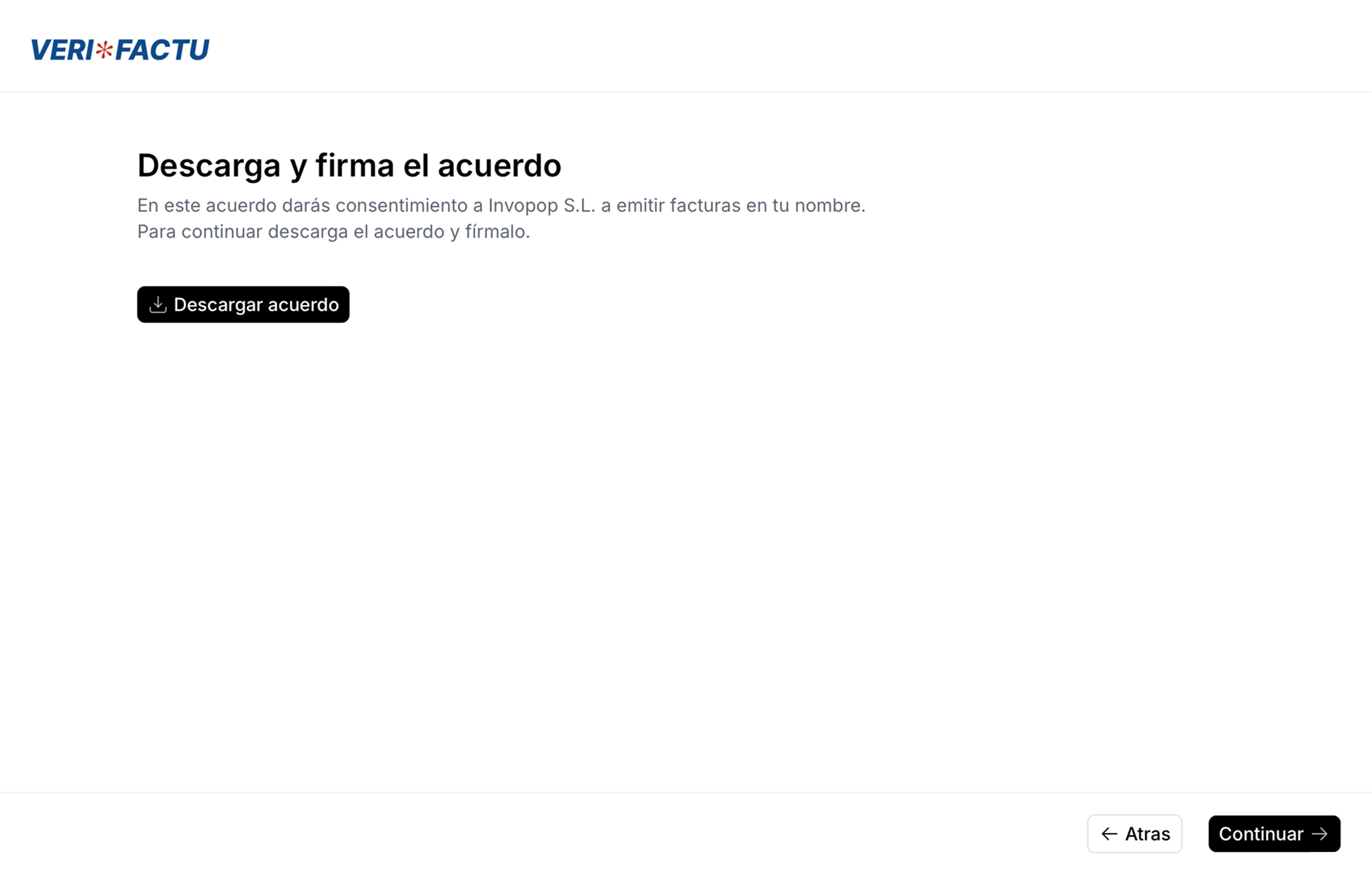 On the following page, the issuer can download and sign their agreement. The details from the previous page will auto-populate into the contract.
The issuer (you, or your customer) will require the following:
1. **Self-employed individuals (autónomos)**
* Signed agreement (handwritten signature or e-signature with the [FNMT's Certificado Electrónico de Ciudadano](https://www.sede.fnmt.gob.es/certificados/persona-fisica))
* National ID (DNI/NIE) if handwritten signature.
2. **Companies**
* Signed agreement (handwritten signature or e-signature with the [FNMT's Certificado Electrónico de Representante](https://www.sede.fnmt.gob.es/certificados/certificado-de-representante/persona-juridica))
* If handwritten signature, legal representative's ID (DNI/NIE/passport) and company stamp.
Please be advised that only certificates issued by [accepted providers](#legal-information) are valid. Self-signed certificates are not considered valid.
On the following page, the issuer can download and sign their agreement. The details from the previous page will auto-populate into the contract.
The issuer (you, or your customer) will require the following:
1. **Self-employed individuals (autónomos)**
* Signed agreement (handwritten signature or e-signature with the [FNMT's Certificado Electrónico de Ciudadano](https://www.sede.fnmt.gob.es/certificados/persona-fisica))
* National ID (DNI/NIE) if handwritten signature.
2. **Companies**
* Signed agreement (handwritten signature or e-signature with the [FNMT's Certificado Electrónico de Representante](https://www.sede.fnmt.gob.es/certificados/certificado-de-representante/persona-juridica))
* If handwritten signature, legal representative's ID (DNI/NIE/passport) and company stamp.
Please be advised that only certificates issued by [accepted providers](#legal-information) are valid. Self-signed certificates are not considered valid.
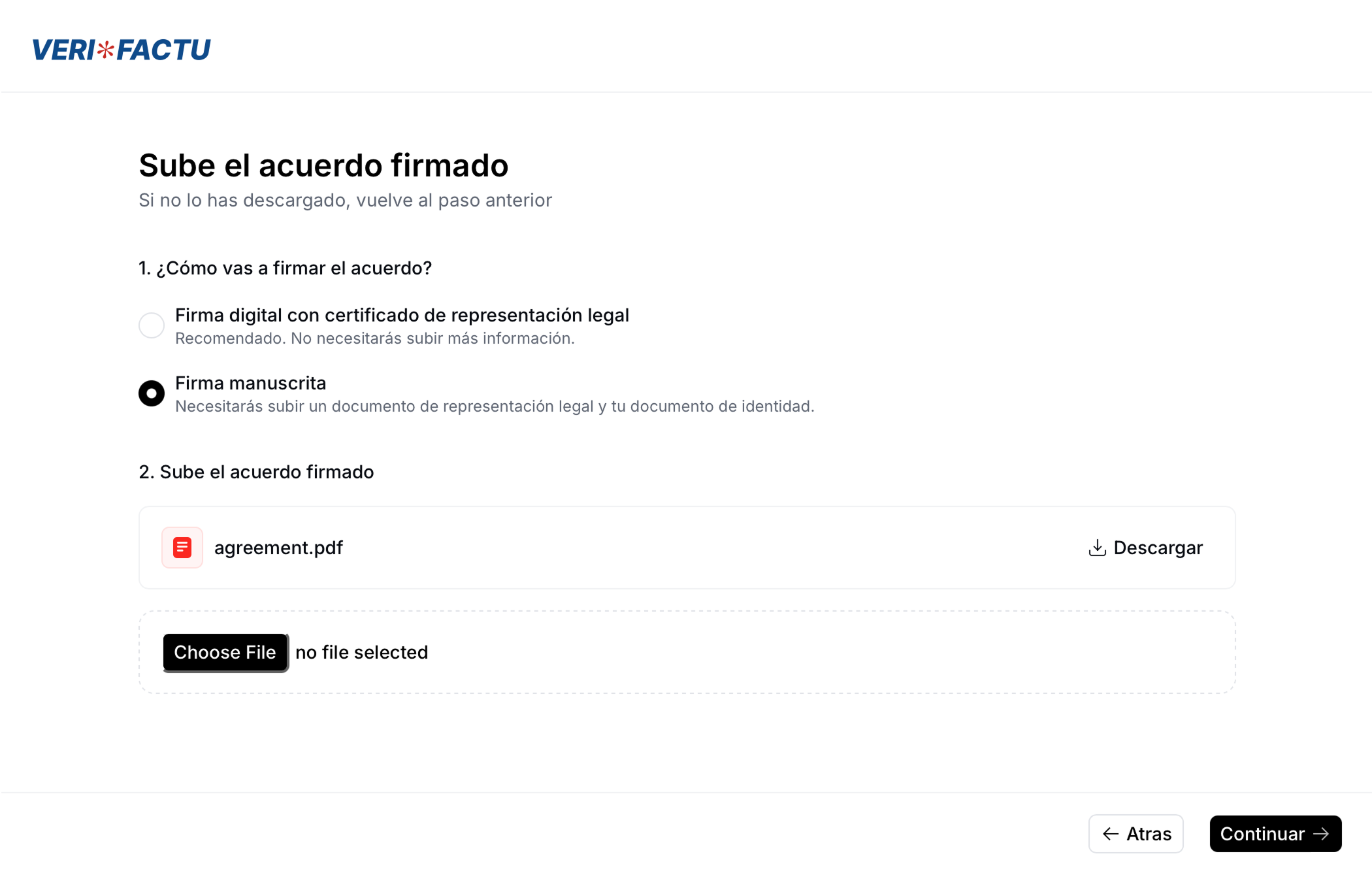 Issuers select the type of signature they used and upload their document. If digital signature is selected, the following step will be skipped as a signature through a FNMT digital certificate counts as a proof of identification.
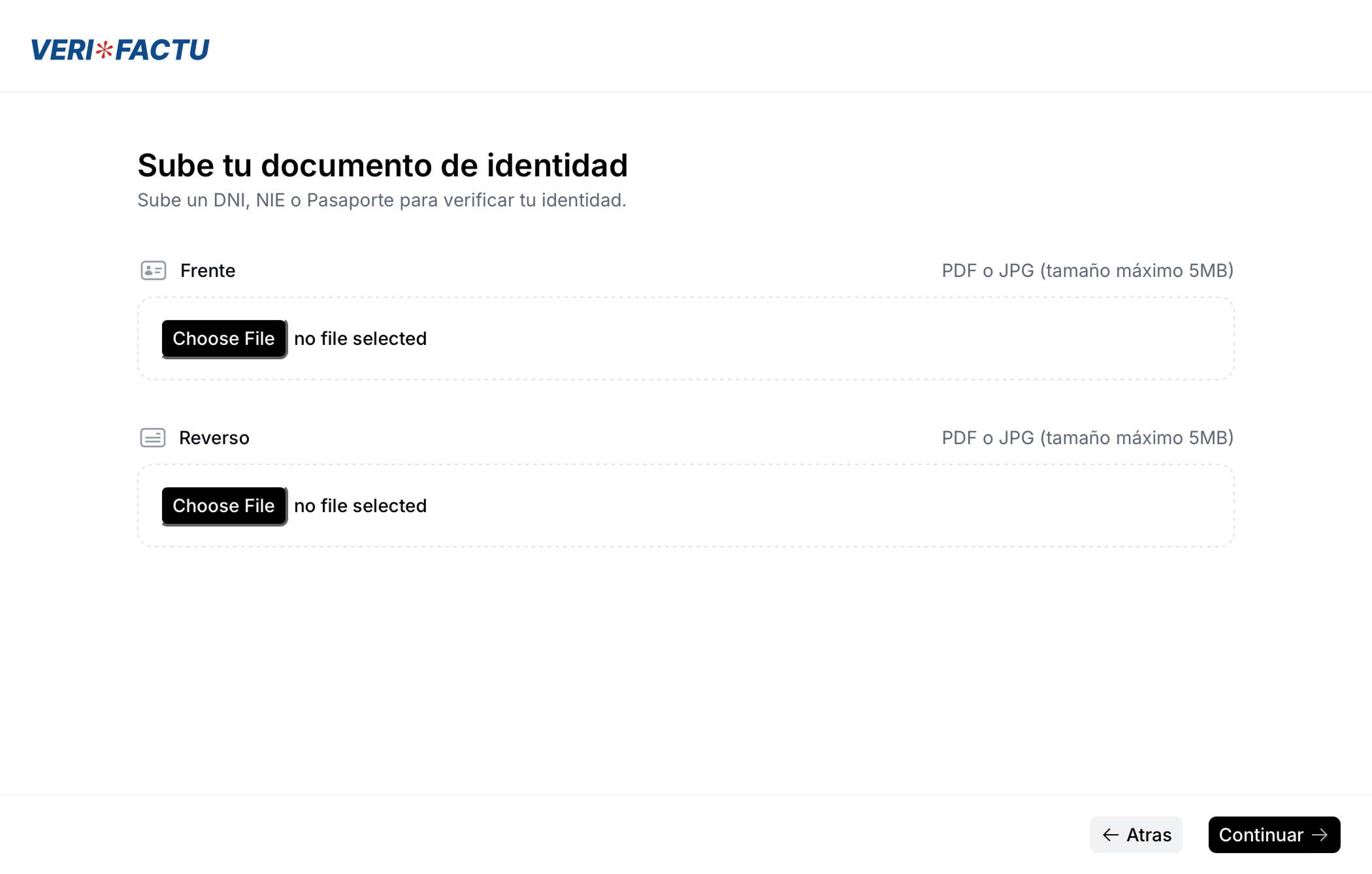 The legal representative or *autónomo* upload a scan or clear photo of their ID in a valid image format (JPG or PNG). The ID should ideally be a DNI/NIE, as passports are only used when the person is not entitled to have one.
Both the front and reverse of the ID should be submitted here. If the ID is a passport (only valid for non-Spanish residents who are representatives of a company), they can upload the main page of their passport both times.
The legal representative or *autónomo* upload a scan or clear photo of their ID in a valid image format (JPG or PNG). The ID should ideally be a DNI/NIE, as passports are only used when the person is not entitled to have one.
Both the front and reverse of the ID should be submitted here. If the ID is a passport (only valid for non-Spanish residents who are representatives of a company), they can upload the main page of their passport both times.
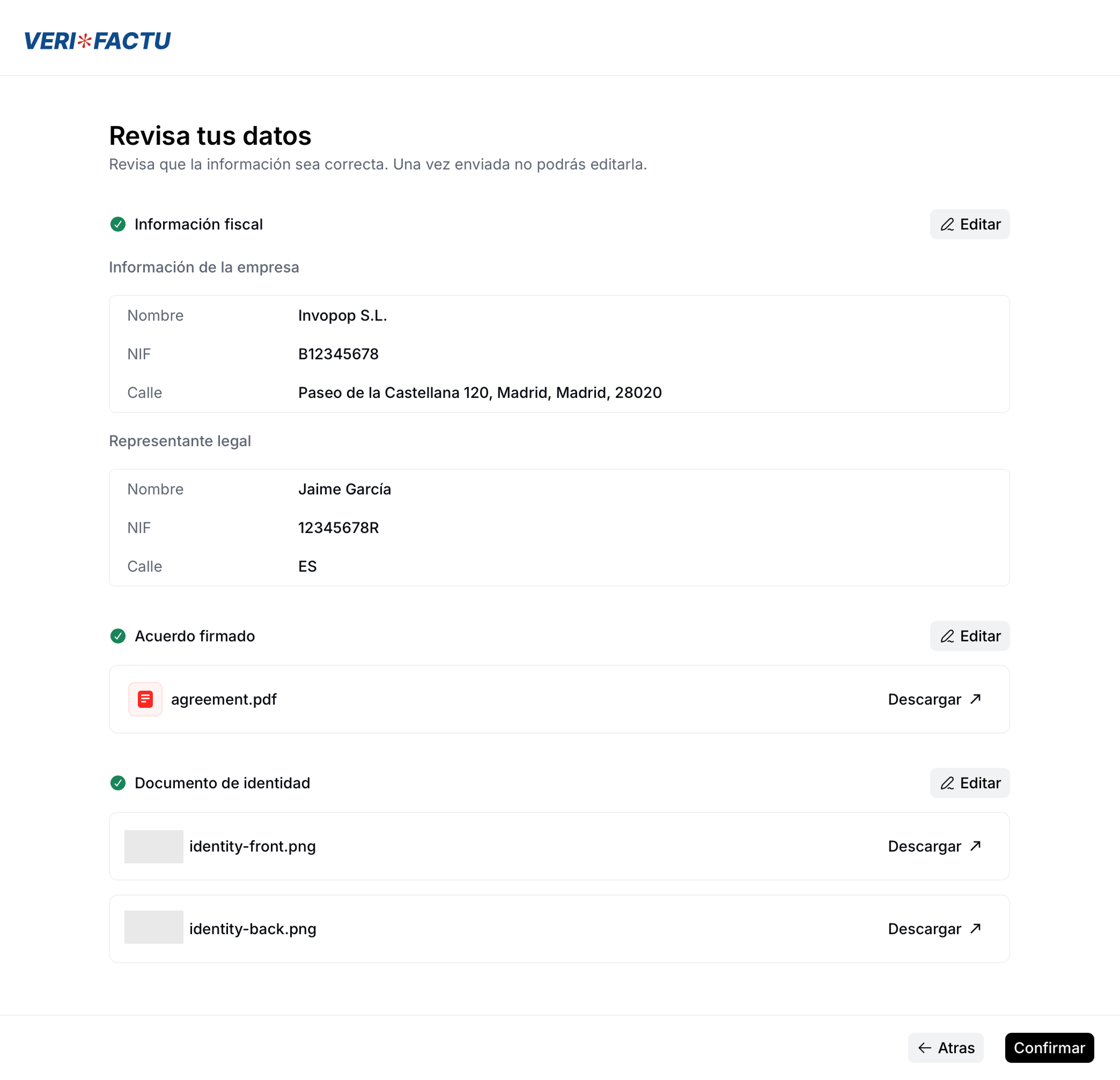 This page provides a summary of information so the user can verify they have submitted the correct data. Any corrections can be easily made through the edit function.
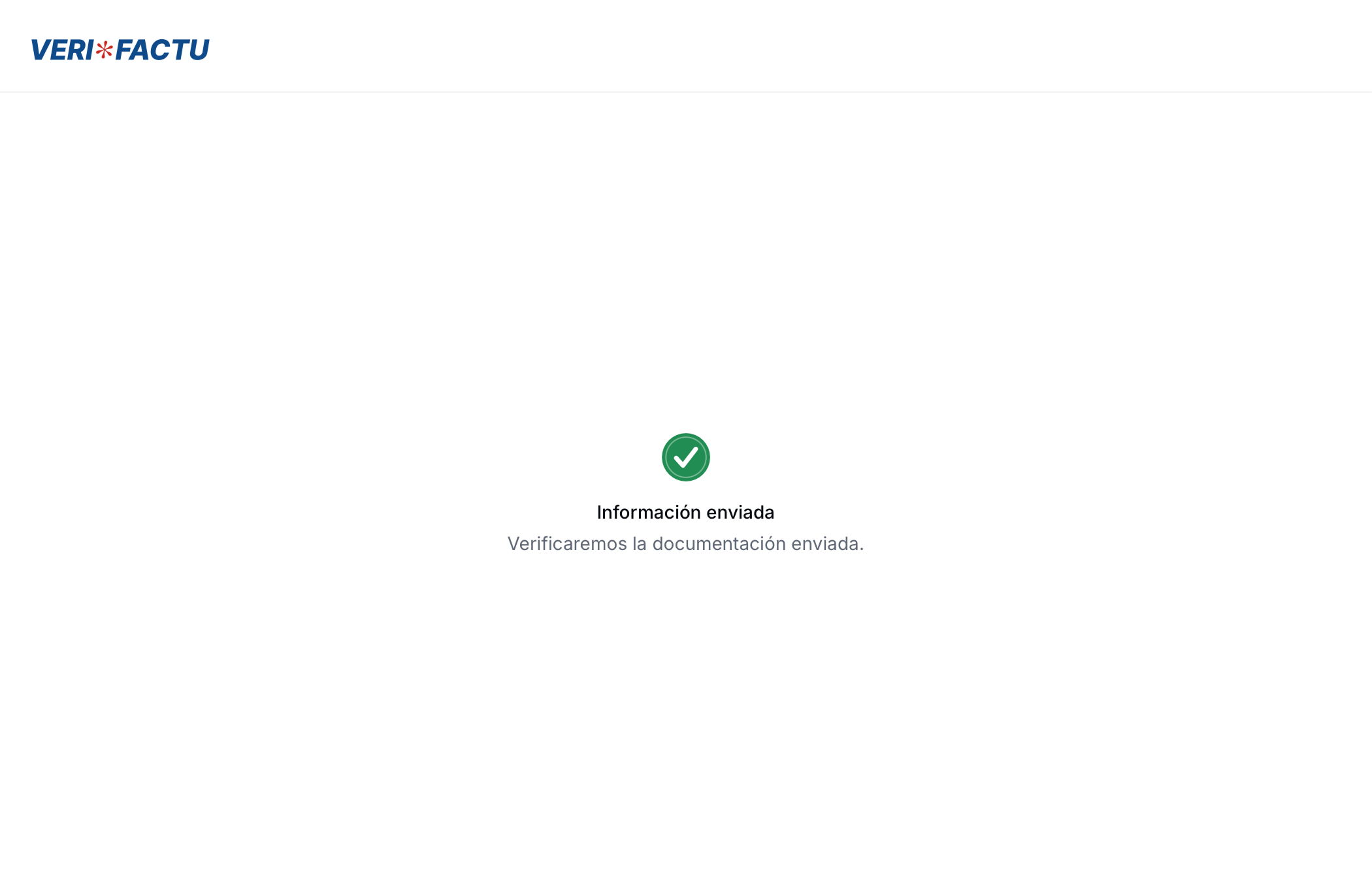 A green checkmark will indicate success, and the supplier will await approval from our team, which will be made in less than 72 hours.
### Onboard suppliers through the API
If you have special needs regarding the onboarding of suppliers for VERI\*FACTU (such as using third party identity verification services), it's possible to implement your own onboarding process through the API. The process would be the following:
1. [Create a supplier entry](https://docs.invopop.com/api-ref/silo/entries/create-an-entry-put) `/silo/v1/entries/{id}`
A green checkmark will indicate success, and the supplier will await approval from our team, which will be made in less than 72 hours.
### Onboard suppliers through the API
If you have special needs regarding the onboarding of suppliers for VERI\*FACTU (such as using third party identity verification services), it's possible to implement your own onboarding process through the API. The process would be the following:
1. [Create a supplier entry](https://docs.invopop.com/api-ref/silo/entries/create-an-entry-put) `/silo/v1/entries/{id}`
Besides the supplier's basic information, the entry should contain a `people` object containing a [person](https://docs.gobl.org/draft-0/org/person) who will act as the legal representative of the supplier.
2. [Create a job](/api-ref/transform/jobs/create-a-job-put)`/transform/v1/jobs/{id}`
Using the supplier registration workflow ID and Silo Entry ID.
3. [Generate agreement PDF](/api-ref/apps/verifactu/agreement-fetch) `/apps/verifactu/v1/entry/{silo_entry_id}/agreement`
The agreement file will be created with the supplier's data.
4. [Upload agreement PDF](/api-ref/apps/verifactu/agreement-upload) `/apps/verifactu/v1/entry/{silo_entry_id}/agreement`
Upload the agreement into the supplier's silo entry.
5. [Upload identity images](/api-ref/apps/verifactu/identity-upload) `/apps/verifactu/v1/entry/{silo_entry_id}/identity`
Upload the ID into the supplier's silo entry (can be DNI, NIE or Passport).
6. [Confirm upload](/api-ref/apps/verifactu/confirm) `/apps/verifactu/v1/entry/{silo_entry_id}/confirm`
Call this endpoint to confirm that everything has been prepared correctly and the supplier is ready to start operating.
## Unregister a supplier
Unregistering a supplier is essentially revoking their invoice issuing priviledges. You might need to unregister an entity because the supplier is no longer your client or because of a change in their Tax ID. To do so, use the following workflow template:
This workflow will revoke invoice issuing privileges for a VERI\*FACTU supplier.
Copy and paste into a new [Empty Party workflow](https://console.invopop.com/redirect/workflows/new?template=empty-party) code view.
```json Example VERI*FACTU unregister supplier workflow theme={"system"}
{
"name": "VERI*FACTU unregister supplier",
"description": "Unregister a supplier from VERI*FACTU",
"schema": "org/party",
"steps": [
{
"id": "8a613610-67ba-11f0-bcaf-170efff782a9",
"name": "Unregister supplier from VERI*FACTU",
"provider": "verifactu.unregister"
},
{
"id": "96a6b0d0-67ba-11f0-bcaf-170efff782a9",
"name": "Set state",
"provider": "silo.state",
"summary": "Set state to `void`{.state .void}",
"config": {
"state": "void"
}
}
],
"rescue": [
{
"id": "e8d2a6b0-67bb-11f0-bcaf-170efff782a9",
"name": "Set state",
"provider": "silo.state",
"summary": "Set state to `error`{.state .error}",
"config": {
"state": "error"
}
}
]
}
```
In [Console](https://console.invopop.com) create a new workflow and select [Empty Party workflow](https://console.invopop.com/redirect/workflows/new?template=empty-party) in the template selector, then add the following steps:
1. **Unregister supplier** - Revokes invoice issuing authorization by the AEAT.
2. **Set state** - Select `void` to label the supplier accordingly.
In the Error Handling section, add the **Set state** action and select `Error`.
## Legal information
There is no official certification for VERI\*FACTU from the AEAT (the Spanish tax agency). Instead, each developer, company, or provider that implements an invoicing software must provide an electronically signed declaration where they certify that their system meets all the requirements established in the regulations. This document is binding and must be kept available for the Tax Authority.
The AEAT requires that this declaration be available and always visible within the system itself, and it must include certain control elements such as the installation number, issuer data, software version, and system ID.
If you are a white label user of Invopop (you issue invoices in the name of third parties), you are required to display a link to this "declaración responsable" in your software. Here is [the template from the AEAT](https://sede.agenciatributaria.gob.es/static_files/Sede/Tema/IVA/Verifactu/EjemplosDeclaracionResponsable\(V0.5.1\).pdf), and our own for your reference: [Declaración responsable VERI\*FACTU - Invopop](https://drive.google.com/file/d/1IR2EuavoEi8E3hlAM4u-XTIFbalxxKzj/view). Some of our customers have asked us if it is necessary to mention Invopop in their *declaración responable*. It is not required, but we appreciate it.
[Declaración responsable VERI\*FACTU - Invopop](https://drive.google.com/file/d/1IR2EuavoEi8E3hlAM4u-XTIFbalxxKzj/view) (PDF)
Digital signatures rely on certificates, but not all certificates serve as proof of identity. The Spanish Tax Agency (AEAT) accepts only qualified certificates—those issued by an authority that has verified the holder’s identity in advance.
For individuals, this means using an official certificate from an accredited provider such as the FNMT. Obtaining that certificate requires submitting your ID and completing identity verification. Because this process already confirms who you are, the AEAT treats the resulting digital signature as legally binding identification. As a result, no additional identity check is needed during registration.
In contrast, certificates generated directly by applications like Adobe Acrobat do not involve any identity verification. They are self-signed and therefore cannot be used for official submissions or as valid digital signatures in AEAT or government procedures.
If you wish to obtain a certificate that is valid for most (if not all) Spanish government procedures, you can do so by following the procedure on [certificates page of the FNMT](https://www.sede.fnmt.gob.es/certificados/persona-fisica). For instructions on how to make it available in Acrobat Reader to sign official documents, consult [this PDF](https://www.sede.fnmt.gob.es/documents/10445900/10528353/Firmar_documento_PDF_Adobe_Acrobat_Reader_DC.pdf).
Otherwise, we require the secondary procedure of signing the document by handwritten signature, and an official ID as proof of identity as required by the AEAT.
The following certificate providers are accepted:
* AC ABOGACÍA
* ANF AC
* ANF CA
* BEWOR
* CAMERFIRMA
* CENTRO TECNOLÓGICO DEL NOTARIADO
* CERES FÁBRICA NACIONAL DE MONEDA Y TIMBRE - REAL CASA DE LA MONEDA, E.P.E, M.P. (FNMT-RCM)
* CONSORCI AOC (CATCERT)
* DEH ONLINE
* DIGITEL TS
* DIRECCIÓN GENERAL DE LA POLICÍA
* DOCUTEN
* EADTRUST
* EDICOM
* ESFIRMA
* FIRMAFY
* FIRMAPROFESIONAL, S.A.
* INDIZE
* IZENPE, S.A.
* LLEIDANET PKI
* LOGALTY SERVICIOS DE TERCERO DE CONFIANZA S.L.
* MINISTERIO DE DEFENSA DE ESPAÑA
* PERMISSO
* REGISTRADORES DE ESPAÑA
* SECTIGO
* SIA
* SIGNATURIT- IVNOSYS
* SIGNE AUTORIDAD DE CERTIFICACIÓN
* SIGNICAT SPAIN
* UANATACA
* VALIDATED ID
* VINTEGRIS
## FAQ
We reject agreements when:
* The uploaded document is not signed (they upload the unsigned template).
* Users upload a handwritten signature without and ID.
* The electronic signature is made with an FNMT certificate.
* The agreement is missing a date or location.
* The name is entered as an email address.
The job will state the reason for rejection.
A KO will be triggered and the supplier will be labelled with the `Error` state. We currently recommend sending a reminder to the supplier through a webhook.
The registration link will not expire and the entity will still be able to upload their registration documents which will be validated. Should you choose to run this workflow again using this supplier, the supplier will be accepted or rejected immediately because the required documentation has already been provided and validated.
If the uploaded agreement documents were rejected, a KO will be triggered and the supplier will be labelled with the `Error` state. We currently recommend sending a notification to the supplier through a webhook within the **Error Handling** section.
Afterwards, if you wish to re-register the supplier with new documents, you must:
1. Unregister the supplier using the **Unregister Supplier workflow**.
2. Re-run the Register supplier workflow.
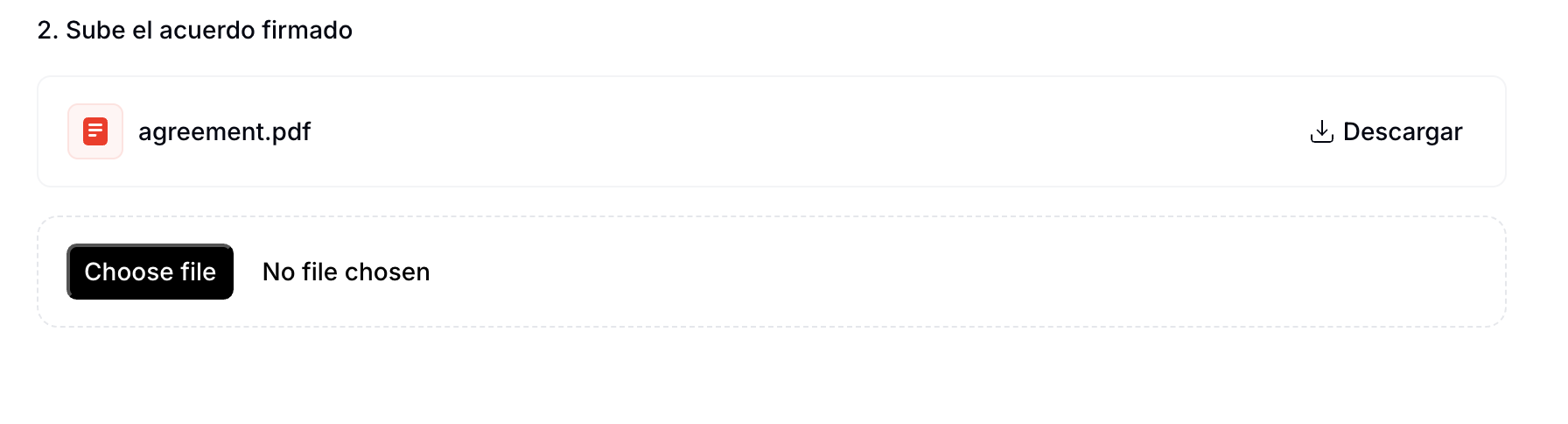
This will restart the entire registration process. When uploading documents, the previously submitted agreement will appear selected by default. Simply choose a new file and click `Continue` to override the old one. See the image below for reference:
 In order to complete the representation agreement you will need to provide the following information:
**Company**
1. Name
2. NIF
3. Address
**Legal representative**
1. Full name
2. Government ID type and number
3. Address
```json Spain supplier example theme={"system"}
{
"$schema": "https://gobl.org/draft-0/org/party",
"name": "Invopop S.L.",
"tax_id": {
"country": "ES",
"code": "B85905495"
},
"people": [
{
"name": {
"given": "Juan",
"surname": "Pérez González"
},
"identities": [
{
"key": "national",
"code": "123456789A"
}
],
"addresses": [
{
"num": "10",
"street": "Calle Ejemplo",
"locality": "Madrid",
"region": "Madrid",
"code": "28020",
"country": "ES"
}
]
}
],
"addresses": [
{
"num": "42",
"street": "Calle Pradillo",
"locality": "Madrid",
"region": "Madrid",
"code": "28002",
"country": "ES"
}
],
"emails": [
{
"addr": "billing@example.com"
}
]
}
```
If the entity is an self-employed individual (*autónomo*), only the information requested in in the **Legal representative** section is required.
```json Spain autónomo supplier example theme={"system"}
{
"$schema": "https://gobl.org/draft-0/org/party",
"name": "Juan Pérez González",
"tax_id": {
"country": "ES",
"code": "B85905495"
},
"addresses": [
{
"num": "42",
"street": "Calle Pradillo",
"locality": "Madrid",
"region": "Madrid",
"code": "28002",
"country": "ES"
}
],
"emails": [
{
"addr": "autonomo@example.com"
}
]
}
```
The supplier can add their electronic signature to the PDF document ([instructions](https://helpx.adobe.com/acrobat/using/signing-pdfs.html)), or sign with a handwritten signature (we recommend using [Adobe's online service](https://www.adobe.com/acrobat/online/sign-pdf.html).
Individual documents are limited to a maximum size of 10MB. Uploads exceeding this size will result in an error.
Run the VERI\*FACTU Register Supplier workflow. The legal representative signs the PDF agreement (electronic or handwritten signature with ID) and Invopop registers the supplier with AEAT for invoicing on their behalf.
More available in our [Spain FAQ](/faq/spain) section
***
| | |
| ---------- | --------------------------------------------------------------------------------------------------------------------------------------------------------------------------------------------------------------------------------------------------------------------------------------------------------------------------------------------------------------------------------------------------------------------------------------------------------------------------------------------------- |
| Compliance | [Invoicing compliance in Spain](/compliance/spain)
In order to complete the representation agreement you will need to provide the following information:
**Company**
1. Name
2. NIF
3. Address
**Legal representative**
1. Full name
2. Government ID type and number
3. Address
```json Spain supplier example theme={"system"}
{
"$schema": "https://gobl.org/draft-0/org/party",
"name": "Invopop S.L.",
"tax_id": {
"country": "ES",
"code": "B85905495"
},
"people": [
{
"name": {
"given": "Juan",
"surname": "Pérez González"
},
"identities": [
{
"key": "national",
"code": "123456789A"
}
],
"addresses": [
{
"num": "10",
"street": "Calle Ejemplo",
"locality": "Madrid",
"region": "Madrid",
"code": "28020",
"country": "ES"
}
]
}
],
"addresses": [
{
"num": "42",
"street": "Calle Pradillo",
"locality": "Madrid",
"region": "Madrid",
"code": "28002",
"country": "ES"
}
],
"emails": [
{
"addr": "billing@example.com"
}
]
}
```
If the entity is an self-employed individual (*autónomo*), only the information requested in in the **Legal representative** section is required.
```json Spain autónomo supplier example theme={"system"}
{
"$schema": "https://gobl.org/draft-0/org/party",
"name": "Juan Pérez González",
"tax_id": {
"country": "ES",
"code": "B85905495"
},
"addresses": [
{
"num": "42",
"street": "Calle Pradillo",
"locality": "Madrid",
"region": "Madrid",
"code": "28002",
"country": "ES"
}
],
"emails": [
{
"addr": "autonomo@example.com"
}
]
}
```
The supplier can add their electronic signature to the PDF document ([instructions](https://helpx.adobe.com/acrobat/using/signing-pdfs.html)), or sign with a handwritten signature (we recommend using [Adobe's online service](https://www.adobe.com/acrobat/online/sign-pdf.html).
Individual documents are limited to a maximum size of 10MB. Uploads exceeding this size will result in an error.
Run the VERI\*FACTU Register Supplier workflow. The legal representative signs the PDF agreement (electronic or handwritten signature with ID) and Invopop registers the supplier with AEAT for invoicing on their behalf.
More available in our [Spain FAQ](/faq/spain) section
***
| | |
| ---------- | --------------------------------------------------------------------------------------------------------------------------------------------------------------------------------------------------------------------------------------------------------------------------------------------------------------------------------------------------------------------------------------------------------------------------------------------------------------------------------------------------- |
| Compliance | [Invoicing compliance in Spain](/compliance/spain)
[Compliance timeline](/timelines/spain) |
| Apps | [Spain](/apps/spain)
[VERI\*FACTU Spain](/apps/verifactu-spain)
[TicketBAI Spain](/apps/ticketbai-spain) |
| Guides | [Facturae Guide](/guides/es-facturae)
[VERI\*FACTU Invoicing Guide](/guides/es-verifactu)
[VERI\*FACTU Supplier Onboarding](/guides/es-verifactu-supplier)
[SII Invoicing Guide](/guides/es-sii)
[SII Supplier Onboarding](/guides/es-sii-supplier)
[TicketBAI Guide](/guides/es-ticketbai) |
| FAQ | [Spain FAQ](/faq/spain) |
| GOBL | [Spain Tax Regime](https://docs.gobl.org/regimes/es)
[VERI\*FACTU Addon](https://docs.gobl.org/addons/es-verifactu-v1)
[Facturae Addon](https://docs.gobl.org/addons/es-facturae-v3)
[SII Addon](https://docs.gobl.org/addons/es-sii-v1) |
| GitHub | [gobl.facturae](https://github.com/invopop/gobl.facturae)
[gobl.verifactu](https://github.com/invopop/gobl.verifactu)
[gobl.ticketbai](https://github.com/invopop/gobl.ticketbai) |
Ask and answer questions about invoicing in Spain →