> ## Documentation Index
> Fetch the complete documentation index at: https://docs.invopop.com/llms.txt
> Use this file to discover all available pages before exploring further.
# SDI Receiving Invoices Guide
> Receive and process electronic invoices from Italy's SDI system
## Introduction
The SDI system operates using a standardized XML format called FatturaPA, which ensures all invoices contain the required information and comply with the strict validation rules established by the Italian tax authority (*Agenzia delle Entrate*). To ensure proper routing of invoices to the correct recipient, the SDI system uses a unique identifier called a Recipient Code, which is assigned to each registered SDI provider.
To receive FatturaPA XML documents, Invopop uses the [GOBL FatturaPA](https://github.com/invopop/gobl.fatturapa) library to automatically process conversions into [GOBL](https://docs.gobl.org) format.
Detailed information about the SDI-specific extensions and validations can be found in:
* [Italy SDI FatturaPA v1.x Addon Documentation](https://docs.gobl.org/addons/it-sdi-v1)
* [Italy Tax Regime Documentation](https://docs.gobl.org/regimes/it)
| - | Sandbox | Live |
| --------------- | ---------------------------------------------- | ------------------------------------------------------ |
| **Supplier** | Skip — Invopop simulates receiving environment | Must register Recipient Code at Agenzia Entrate |
| **Environment** | Test | Must select `Production` when registering SDI Customer |
## Setup
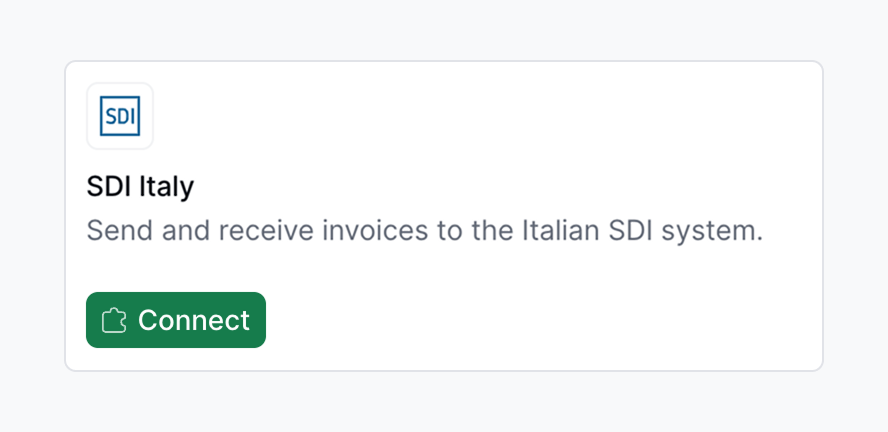
1. Navigate to **Configuration** → **Apps**
2. Locate **SDI Italy** in the app discovery list
3. Tap **Connect** to activate
 Unlike sending, receiving invoices requires additional configuration after the initial connection.
Use this workflow to register a company to receive invoices through SDI.
This workflow registers a company to receive electronic invoices through Italy’s SDI.
Copy and paste into a new [Empty Party workflow](https://console.invopop.com/redirect/workflows/new?template=empty-party) code view.
```json Example SDI register customer workflow theme={"system"}
{
"name": "SDI register customer",
"description": "Register a customer with SDI to receive invoices",
"schema": "org/party",
"steps": [
{
"id": "2a34f560-fd13-11ef-998c-e97f18c9212e",
"name": "Set state",
"provider": "silo.state",
"summary": "Set state to `processing`{.state .processing}",
"config": {
"state": "processing"
}
},
{
"id": "3b5c7890-fd13-11ef-998c-e97f18c9212e",
"name": "Register party with SDI",
"provider": "sdi-it.register",
"summary": "Register company as receiver",
"config": {
"environment": "production"
}
},
{
"id": "4c6d8910-fd13-11ef-998c-e97f18c9212e",
"name": "Set state",
"provider": "silo.state",
"summary": "Set state to `registered`{.state .registered}",
"config": {
"state": "registered"
}
}
],
"rescue": [
{
"id": "5d7e9a20-fd13-11ef-998c-e97f18c9212e",
"name": "Set state",
"provider": "silo.state",
"summary": "Set state to `error`{.state .error}",
"config": {
"state": "error"
}
}
]
}
```
Before starting, review the [workflows guide](/guides/features/workflows) to understand the general setup process.
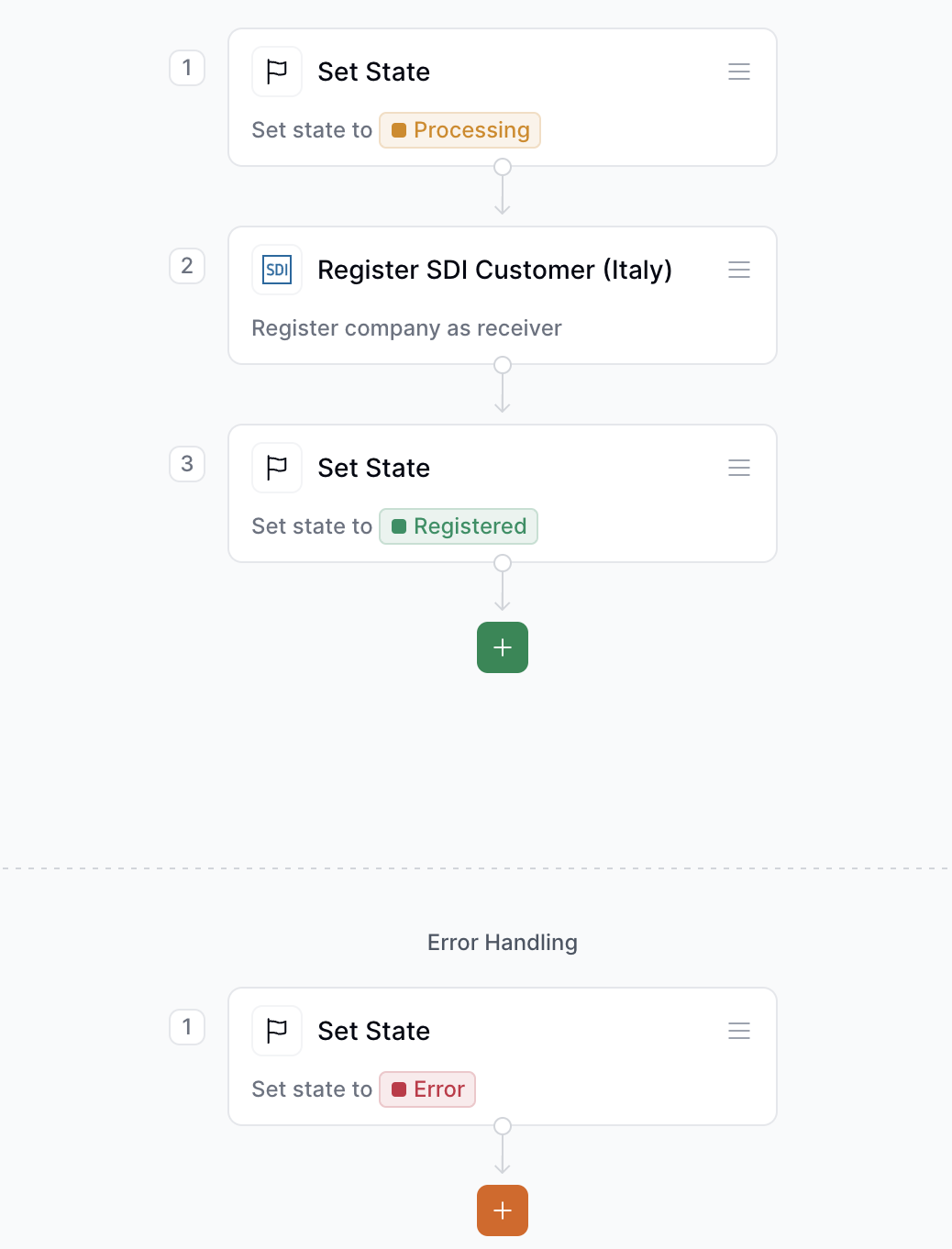
In [Console](https://console.invopop.com), create a new workflow and choose [Empty Party workflow](https://console.invopop.com/redirect/workflows/new?template=empty-party) as the base. Then name the workflow with a descriptive label such as "SDI Register Supplier".
The new workflow will need to perform these steps:
1. **Set state**: Select `Processing` to mark the start of the registration.
2. **Register supplier with SDI**: This step registers the company as an invoice receiver through SDI. Make sure to select the `Production` environment to go live.
3. **Set state**: Once the registration is complete, select `Registered`.
In the **Error Handling** section, add a **Set state** step and choose `Error` to capture any issues during registration.
This minimal workflow is required to onboard a customer for SDI e-invoicing in Italy. You can extend it with notification steps, such as sending confirmation emails or updating external systems when registration succeeds or fails.
Unlike sending, receiving invoices requires additional configuration after the initial connection.
Use this workflow to register a company to receive invoices through SDI.
This workflow registers a company to receive electronic invoices through Italy’s SDI.
Copy and paste into a new [Empty Party workflow](https://console.invopop.com/redirect/workflows/new?template=empty-party) code view.
```json Example SDI register customer workflow theme={"system"}
{
"name": "SDI register customer",
"description": "Register a customer with SDI to receive invoices",
"schema": "org/party",
"steps": [
{
"id": "2a34f560-fd13-11ef-998c-e97f18c9212e",
"name": "Set state",
"provider": "silo.state",
"summary": "Set state to `processing`{.state .processing}",
"config": {
"state": "processing"
}
},
{
"id": "3b5c7890-fd13-11ef-998c-e97f18c9212e",
"name": "Register party with SDI",
"provider": "sdi-it.register",
"summary": "Register company as receiver",
"config": {
"environment": "production"
}
},
{
"id": "4c6d8910-fd13-11ef-998c-e97f18c9212e",
"name": "Set state",
"provider": "silo.state",
"summary": "Set state to `registered`{.state .registered}",
"config": {
"state": "registered"
}
}
],
"rescue": [
{
"id": "5d7e9a20-fd13-11ef-998c-e97f18c9212e",
"name": "Set state",
"provider": "silo.state",
"summary": "Set state to `error`{.state .error}",
"config": {
"state": "error"
}
}
]
}
```
Before starting, review the [workflows guide](/guides/features/workflows) to understand the general setup process.
In [Console](https://console.invopop.com), create a new workflow and choose [Empty Party workflow](https://console.invopop.com/redirect/workflows/new?template=empty-party) as the base. Then name the workflow with a descriptive label such as "SDI Register Supplier".
The new workflow will need to perform these steps:
1. **Set state**: Select `Processing` to mark the start of the registration.
2. **Register supplier with SDI**: This step registers the company as an invoice receiver through SDI. Make sure to select the `Production` environment to go live.
3. **Set state**: Once the registration is complete, select `Registered`.
In the **Error Handling** section, add a **Set state** step and choose `Error` to capture any issues during registration.
This minimal workflow is required to onboard a customer for SDI e-invoicing in Italy. You can extend it with notification steps, such as sending confirmation emails or updating external systems when registration succeeds or fails.
 Use this workflow to import and process invoices received through SDI. This workflow must be selected in the SDI Italy app configuration to automatically process incoming invoices.
This workflow will convert received FatturaPA documents into our open source [GOBL](https://docs.gobl.org) format.
Copy and paste into a new [Empty Invoice workflow](https://console.invopop.com/redirect/workflows/new?template=empty-invoice) code view.
```json Example SDI import invoice workflow theme={"system"}
{
"name": "SDI import invoice",
"description": "Import an invoice received through SDI",
"schema": "bill/invoice",
"steps": [
{
"id": "6e8f0b30-fd13-11ef-998c-e97f18c9212e",
"name": "Import invoice from SDI",
"provider": "sdi-it.import",
"summary": "Convert received FatturaPA to GOBL",
"config": {
"environment": "production"
}
},
{
"id": "7f9a1c40-fd13-11ef-998c-e97f18c9212e",
"name": "Generate PDF",
"provider": "pdf",
"summary": "Italian · A4",
"config": {
"date_format": "%Y-%m-%d",
"locale": "it",
"logo_height": 40
}
},
{
"id": "8a0b2d50-fd13-11ef-998c-e97f18c9212e",
"name": "Set state",
"provider": "silo.state",
"summary": "Set state to `sent`{.state .sent}",
"config": {
"state": "sent"
}
}
],
"rescue": [
{
"id": "9b1c3e60-fd13-11ef-998c-e97f18c9212e",
"name": "Set state",
"provider": "silo.state",
"summary": "Set state to `error`{.state .error}",
"config": {
"state": "error"
}
}
]
}
```
This workflow automates the import and processing of incoming invoices via Italy’s SDI.
Before starting, review the [workflows guide](/guides/features/workflows) to understand the general setup process.
In [Console](https://console.invopop.com), create a new workflow and choose [Empty Invoice workflow](https://console.invopop.com/redirect/workflows/new?template=empty-invoice) as the base. Then add the following steps:
1. **Import invoice from SDI**: Retrieves invoices in the FatturaPA format from SDI and converts them into GOBL. Set the environment to `Production` for real operations.
2. **Generate PDF**: Generates a visual representation of the invoice in Italian, using the specified locale (`it`), date format (`%Y-%m-%d`), and logo height (40px).
3. **Set state**: Marks the invoice as `Sent` once it's successfully processed.
In the **Error Handling** section, add a **Set state** step with the state set to `Error` to capture and flag failed imports.
This is the minimal workflow required to automate the reception and visualization of invoices received through SDI. You may expand it with additional steps such as storing a backup copy, notifying clients, or integrating the documents into an ERP system.
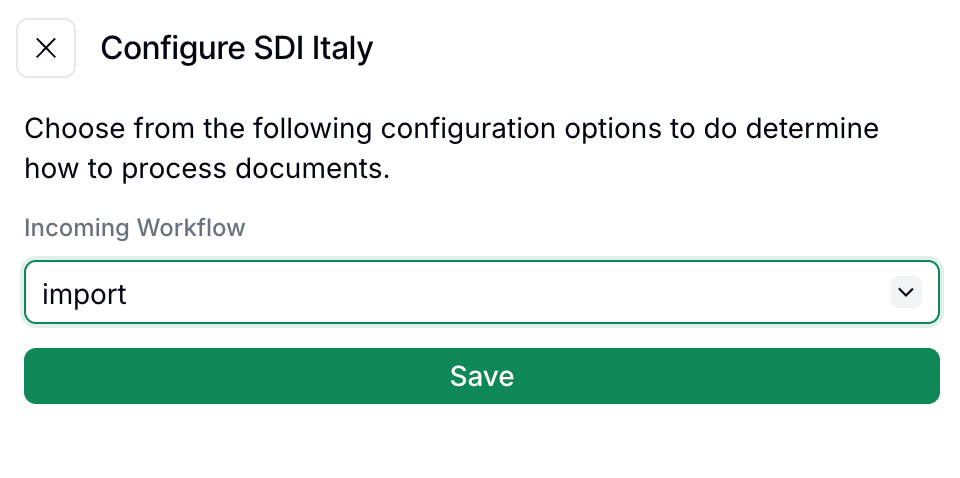
To start processing incoming invoices navigate to **Configuration** → **Apps**, find the **SDI Italy** app and tap **Configure** and select the appropriate **Import Invoices** workflow
Use this workflow to import and process invoices received through SDI. This workflow must be selected in the SDI Italy app configuration to automatically process incoming invoices.
This workflow will convert received FatturaPA documents into our open source [GOBL](https://docs.gobl.org) format.
Copy and paste into a new [Empty Invoice workflow](https://console.invopop.com/redirect/workflows/new?template=empty-invoice) code view.
```json Example SDI import invoice workflow theme={"system"}
{
"name": "SDI import invoice",
"description": "Import an invoice received through SDI",
"schema": "bill/invoice",
"steps": [
{
"id": "6e8f0b30-fd13-11ef-998c-e97f18c9212e",
"name": "Import invoice from SDI",
"provider": "sdi-it.import",
"summary": "Convert received FatturaPA to GOBL",
"config": {
"environment": "production"
}
},
{
"id": "7f9a1c40-fd13-11ef-998c-e97f18c9212e",
"name": "Generate PDF",
"provider": "pdf",
"summary": "Italian · A4",
"config": {
"date_format": "%Y-%m-%d",
"locale": "it",
"logo_height": 40
}
},
{
"id": "8a0b2d50-fd13-11ef-998c-e97f18c9212e",
"name": "Set state",
"provider": "silo.state",
"summary": "Set state to `sent`{.state .sent}",
"config": {
"state": "sent"
}
}
],
"rescue": [
{
"id": "9b1c3e60-fd13-11ef-998c-e97f18c9212e",
"name": "Set state",
"provider": "silo.state",
"summary": "Set state to `error`{.state .error}",
"config": {
"state": "error"
}
}
]
}
```
This workflow automates the import and processing of incoming invoices via Italy’s SDI.
Before starting, review the [workflows guide](/guides/features/workflows) to understand the general setup process.
In [Console](https://console.invopop.com), create a new workflow and choose [Empty Invoice workflow](https://console.invopop.com/redirect/workflows/new?template=empty-invoice) as the base. Then add the following steps:
1. **Import invoice from SDI**: Retrieves invoices in the FatturaPA format from SDI and converts them into GOBL. Set the environment to `Production` for real operations.
2. **Generate PDF**: Generates a visual representation of the invoice in Italian, using the specified locale (`it`), date format (`%Y-%m-%d`), and logo height (40px).
3. **Set state**: Marks the invoice as `Sent` once it's successfully processed.
In the **Error Handling** section, add a **Set state** step with the state set to `Error` to capture and flag failed imports.
This is the minimal workflow required to automate the reception and visualization of invoices received through SDI. You may expand it with additional steps such as storing a backup copy, notifying clients, or integrating the documents into an ERP system.
To start processing incoming invoices navigate to **Configuration** → **Apps**, find the **SDI Italy** app and tap **Configure** and select the appropriate **Import Invoices** workflow
 This workflow will automatically trigger whenever a new invoice is received through SDI. Any errors in the import process will trigger the rescue steps in the workflow, allowing identification and resolution of issues.
In Sandbox skip this step, as Invopop simulates the receiving environment.
For each company you want to receive invoices, register the Recipient Code (Codice Destinatario) at Agenzia Entrate.
1. Access the [Italian tax authority's website](https://ivaservizi.agenziaentrate.gov.it/portale/) and log in with valid credentials for the company being registered.
This workflow will automatically trigger whenever a new invoice is received through SDI. Any errors in the import process will trigger the rescue steps in the workflow, allowing identification and resolution of issues.
In Sandbox skip this step, as Invopop simulates the receiving environment.
For each company you want to receive invoices, register the Recipient Code (Codice Destinatario) at Agenzia Entrate.
1. Access the [Italian tax authority's website](https://ivaservizi.agenziaentrate.gov.it/portale/) and log in with valid credentials for the company being registered.
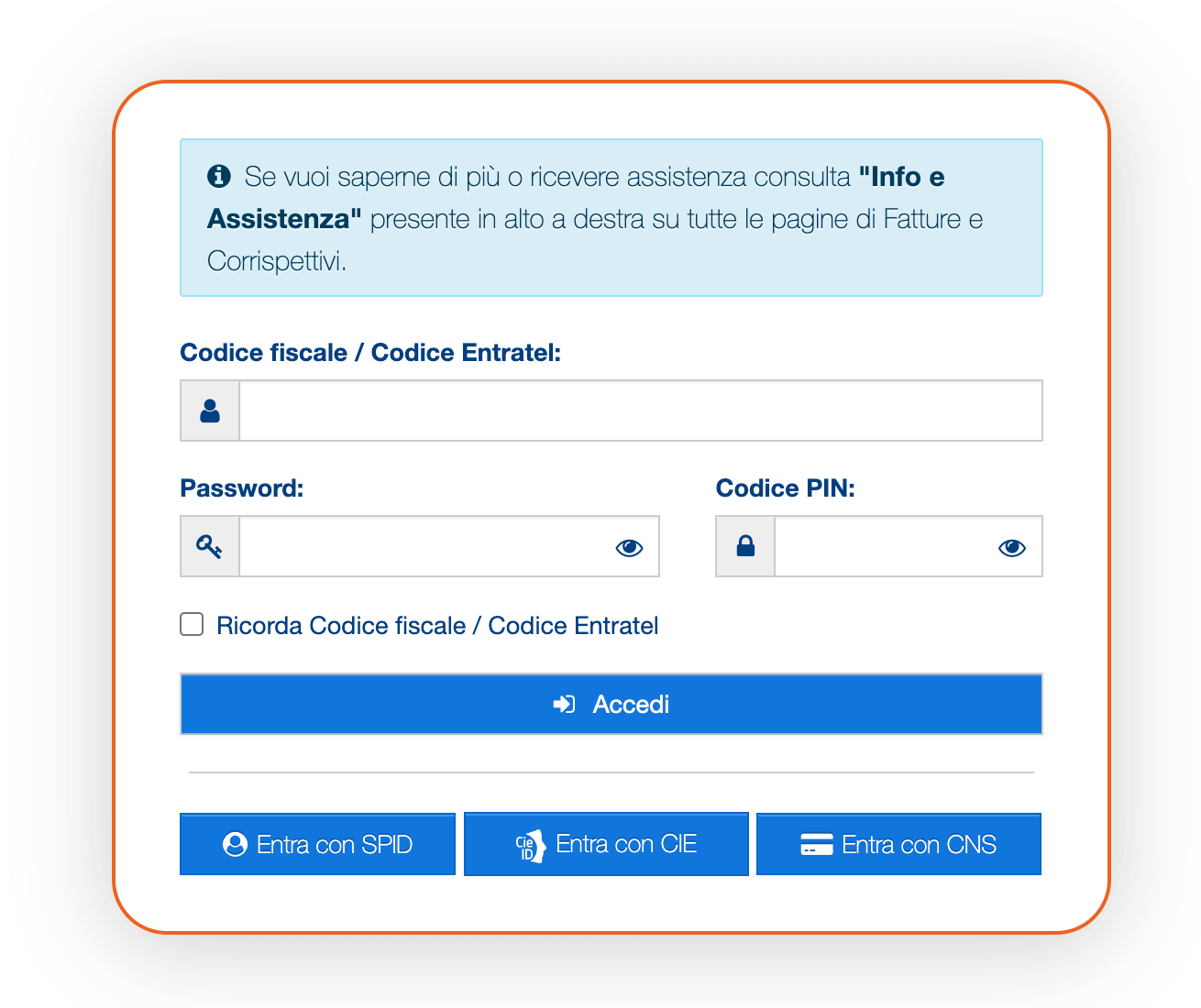 2. Tap on the **Fatture e Corrispettivi** section.
3. In the box **Fatturazione elettronica**, tap on **Registrazione delle modalità di ricezione della fattura elettronica**.
4. Select the Recipient Code (*Codice Destinatario*) option and enter the code `JKKZDGR` provided by Invopop
5. Tap on **Conferma**
Make sure you notify the companies about their new Codice Destinatario. It works as a routing identifier that tells the SDI system where to deliver incoming electronic invoices. Invoices sent to an outdated Codice Destinatario will be rejected.
In Invopop, execute the [SDI register customer](#template-2) workflow on the supplier's silo entry to complete the setup for that company.
In live workspaces make sure you both register Codice Destinatario `JKKZDGR` and run the customer registration workflow. Registration is only needed for receiving invoices, not sending.
## Receiving Invoices
Once registered, any invoices addressed to the registered companies with the Recipient Code will be automatically received and processed through the Import Invoices workflow configured in the app settings. Received invoices will appear in your **Expenses** folder.
If errors occur during the import process, they will trigger the rescue steps in the workflow, allowing users to check what went wrong and take appropriate action.
## FAQ
Register the recipient with SDI using Invopop's Recipient Code (`JKKZDGR`) and run the Customer Registration workflow. Invopop automatically receives matching invoices and routes them through the configured Import workflow.
Inbound FatturaPA XMLs are parsed via [`gobl.fatturapa`](https://github.com/invopop/gobl.fatturapa). The original signed XML is preserved as a silo entry attachment alongside the GOBL representation.
If an invoice received through SDI contains errors:
1. The import process will still attempt to convert it to [GOBL](https://docs.gobl.org) format
2. Any validation errors will be logged, and the rescue steps in your workflow will be triggered
3. You can review the errors and decide how to handle the invoice
If the invoice has significant structural issues that prevent conversion, you may need to contact the sender to request a corrected invoice.
Invoices are typically received within minutes after being sent by suppliers through SDI. The automatic import process in Invopop processes them as soon as they are received by our system.
Yes, multiple companies can be registered to receive invoices through a single Invopop workspace. For each company, you must:
1. Register the Recipient Code `JKKZDGR` with the Italian tax authority for that specific company
2. Have its tax ID registered using the Customer Registration workflow in Invopop
3. Use the same Import Invoices workflow configured in the app settings
This two-step registration process (with the tax authority and with Invopop) must be completed for each company you want to register. This is particularly useful for white-labeling scenarios where a user manages multiple entities.
The two-step registration process serves different purposes:
1. **Registering with the Italian tax authority** - Tells SDI to route invoices addressed to your company to Invopop's system using the *Codice Destinatario* `JKKZDGR`.
2. **Registering with Invopop** (Customer Registration workflow) - Tells Invopop's system which invoices to accept and process for your workspace.
Both steps are necessary: the first routes the invoices to Invopop, and the second ensures Invopop knows which workspace should receive those invoices.
Signed FatturaPA XML (versions 1.2.x), conforming to the Agenzia delle Entrate schema. The signature is XAdES; SDI's own *Notifica di Esito Committente* envelopes the document during transmission.
More available in our [Italy FAQ](/faq/italy) section
***
| | |
| ---------- | --------------------------------------------------------------------------------------------------------------------------------------------------------------------------------------------------------------------------------------------------------------------------------------------------------------------------------------------------------------------------------------- |
| Compliance | [Invoicing compliance in Italy](/compliance/italy)
2. Tap on the **Fatture e Corrispettivi** section.
3. In the box **Fatturazione elettronica**, tap on **Registrazione delle modalità di ricezione della fattura elettronica**.
4. Select the Recipient Code (*Codice Destinatario*) option and enter the code `JKKZDGR` provided by Invopop
5. Tap on **Conferma**
Make sure you notify the companies about their new Codice Destinatario. It works as a routing identifier that tells the SDI system where to deliver incoming electronic invoices. Invoices sent to an outdated Codice Destinatario will be rejected.
In Invopop, execute the [SDI register customer](#template-2) workflow on the supplier's silo entry to complete the setup for that company.
In live workspaces make sure you both register Codice Destinatario `JKKZDGR` and run the customer registration workflow. Registration is only needed for receiving invoices, not sending.
## Receiving Invoices
Once registered, any invoices addressed to the registered companies with the Recipient Code will be automatically received and processed through the Import Invoices workflow configured in the app settings. Received invoices will appear in your **Expenses** folder.
If errors occur during the import process, they will trigger the rescue steps in the workflow, allowing users to check what went wrong and take appropriate action.
## FAQ
Register the recipient with SDI using Invopop's Recipient Code (`JKKZDGR`) and run the Customer Registration workflow. Invopop automatically receives matching invoices and routes them through the configured Import workflow.
Inbound FatturaPA XMLs are parsed via [`gobl.fatturapa`](https://github.com/invopop/gobl.fatturapa). The original signed XML is preserved as a silo entry attachment alongside the GOBL representation.
If an invoice received through SDI contains errors:
1. The import process will still attempt to convert it to [GOBL](https://docs.gobl.org) format
2. Any validation errors will be logged, and the rescue steps in your workflow will be triggered
3. You can review the errors and decide how to handle the invoice
If the invoice has significant structural issues that prevent conversion, you may need to contact the sender to request a corrected invoice.
Invoices are typically received within minutes after being sent by suppliers through SDI. The automatic import process in Invopop processes them as soon as they are received by our system.
Yes, multiple companies can be registered to receive invoices through a single Invopop workspace. For each company, you must:
1. Register the Recipient Code `JKKZDGR` with the Italian tax authority for that specific company
2. Have its tax ID registered using the Customer Registration workflow in Invopop
3. Use the same Import Invoices workflow configured in the app settings
This two-step registration process (with the tax authority and with Invopop) must be completed for each company you want to register. This is particularly useful for white-labeling scenarios where a user manages multiple entities.
The two-step registration process serves different purposes:
1. **Registering with the Italian tax authority** - Tells SDI to route invoices addressed to your company to Invopop's system using the *Codice Destinatario* `JKKZDGR`.
2. **Registering with Invopop** (Customer Registration workflow) - Tells Invopop's system which invoices to accept and process for your workspace.
Both steps are necessary: the first routes the invoices to Invopop, and the second ensures Invopop knows which workspace should receive those invoices.
Signed FatturaPA XML (versions 1.2.x), conforming to the Agenzia delle Entrate schema. The signature is XAdES; SDI's own *Notifica di Esito Committente* envelopes the document during transmission.
More available in our [Italy FAQ](/faq/italy) section
***
| | |
| ---------- | --------------------------------------------------------------------------------------------------------------------------------------------------------------------------------------------------------------------------------------------------------------------------------------------------------------------------------------------------------------------------------------- |
| Compliance | [Invoicing compliance in Italy](/compliance/italy)
[Compliance timeline](/timelines/italy) |
| Apps | [SDI Italy](/apps/sdi-italy)
[Smart Receipts Italy](/apps/smart-receipts-italy) |
| Guides | [SDI Sending Guide](/guides/it-sdi-sending)
[SDI Receiving Guide](/guides/it-sdi-receiving)
[Ticket Guide](/guides/it-ticket) |
| FAQ | [Italy FAQ](/faq/italy) |
| GOBL | [Italy Tax Regime](https://docs.gobl.org/regimes/it)
[Italy SDI FatturaPA Addon](https://docs.gobl.org/addons/it-sdi-v1)
[Italy AdE Ticket Addon](https://docs.gobl.org/addons/it-ticket-v1) |
| GitHub | [gobl.fatturapa](https://github.com/invopop/gobl.fatturapa) |
Ask and answer questions about invoicing in Italy →