Introduction
SII (Suministro Inmediato de Información) is a fiscal initiative by the Spanish Tax Agency (AEAT) that requires large businesses to report invoices through certified software. The system records issued and received invoices.Prerequisites
To issue your first SII invoice, you must have registered at least one supplier. Make sure you read and implemented the SII supplier onboarding guide before continuing with this guide.Setup
Add a new workflow to your workspace to issue invoices. You can start with the template below.SII issued invoice workflow
- Workflow
- Code
SII received invoice workflow
- Workflow
- Code
Workflow ID at hand, you’ll use them later.
Issue an invoice
Upload an Invoice
- Add the
es-sii-v1addon supplier: Use the details of the supplier you’ve registered before.
B2C Simplified Invoice
B2C Simplified Invoice
- the minimal version in the first tab contains only the essential fields required to create the simplified invoice,
- to create a simplified SII invoice, include the
simplifiedtag in your GOBL document with thees-sii-v1addon, - when running
gobl build, the system automatically calculates totals, assigns the$regimetoES, sets thees-sii-doc-typeextension toF2(Simplified invoice), applies the standard VAT rate (21%), and normalizes all fields, - the built version in the second tab shows the normalized document with calculated totals, line item sums, tax breakdowns, and automatically generated fields, and,
- there are no totals or calculations in the minimal version; all these will be made automatically when uploading.
B2B Standard Invoice
B2B Standard Invoice
- The customer is a registered business (has a tax identification number).
- The transaction amount is €400 VAT included or above, or the customer requires a full invoice.
- The customer needs a complete invoice with all tax details for accounting or tax purposes.
- the minimal version in the first tab contains only the essential fields required to create the standard B2B invoice,
- to create a regular SII invoice, include the
es-sii-v1addon and ensure thecustomerfield contains valid tax identification details, - the
suppliermust be previously registered with the tax authority and thecustomerNIF or VAT ID must be valid, - when running
gobl build, the system automatically calculates totals, assigns the$regimetoES, sets thees-sii-doc-typeextension toF1(Standard invoice), applies the standard VAT rate (21%), and normalizes all fields, - the built version in the second tab shows the normalized document with calculated totals, line item sums, tax breakdowns, and automatically generated fields, and,
- there are no totals or calculations in the minimal version; all these will be made automatically when uploading.
B2B Services EU Client (Reverse Charge)
B2B Services EU Client (Reverse Charge)
- The customer is a registered business in another EU member state (has a valid EU VAT ID).
- The service is provided to a business customer (B2B), not a consumer.
- The service is subject to VAT but the customer accounts for the VAT in their own country.
- the minimal version in the first tab contains only the essential fields required to create the reverse charge invoice,
- to create a reverse charge SII invoice, use the tax key
reverse-chargein your invoice lines, - you also need to set the items
keytoservices, which will generate a breakdown by operation type required for this type of invoices, - with reverse charge, no VAT is charged by the supplier; the customer accounts for VAT in their own country,
- the
suppliermust be previously registered with the tax authority and thecustomerVAT ID must be valid and registered in the EU VIES system, - when running
gobl build, the system automatically sets the operation type toS2(Subject and Not Exempt - With reverse charge) when reporting the document to SII, applies the reverse charge tax treatment, and normalizes all fields, - the built version in the second tab shows the normalized document with the reverse charge configuration, operation type breakdown, and automatically generated fields, and,
- there are no totals or calculations in the minimal version; all these will be made automatically when uploading.
B2B Goods EU Client (Intra-Community)
B2B Goods EU Client (Intra-Community)
- The customer is a registered business in another EU member state (has a valid EU VAT ID).
- Goods are physically delivered to another EU member state.
- The supply is exempt from VAT in the origin country (Spain) and subject to VAT in the destination country.
- the minimal version in the first tab contains only the essential fields required to create the intra-community supply invoice,
- to create an intra-community supply SII invoice, use the tax key
intra-communityin your invoice lines, - you also need to set the items
keytogoods, which will report to SII a breakdown by operation type required for this type of invoices, - with intra-community supplies, no VAT is charged in Spain; the customer accounts for VAT in their destination country,
- the
suppliermust be previously registered with the tax authority and thecustomerVAT ID must be valid and registered in the EU VIES system, - when running
gobl build, thees-sii-v1addon automatically sets thees-sii-exemptextension toE5(Artículo 25 Ley de IVA) and thees-sii-regimeextension to02(Export), - the built version in the second tab shows the normalized document with the intra-community configuration, exemption codes, operation type breakdown, and automatically generated fields, and,
- there are no totals or calculations in the minimal version; all these will be made automatically when uploading.
B2B Services Non-EU Client (Outside Scope)
B2B Services Non-EU Client (Outside Scope)
- the minimal version in the first tab contains only the essential fields required to create the outside scope invoice,
- to create an outside scope SII invoice, use the tax key
outside-scopein your invoice lines, - services provided to non-EU customers are generally outside the scope of Spanish VAT,
- the
suppliermust be previously registered with the tax authority; customer tax identification is optional but recommended for record-keeping purposes, - when running
gobl build, thees-sii-v1addon automatically sets thees-sii-ootextension tolocationand normalizes all fields, - the built version in the second tab shows the normalized document with the outside scope configuration and automatically generated fields, and,
- there are no totals or calculations in the minimal version; all these will be made automatically when uploading.
B2B Goods Non-EU Client (Export)
B2B Goods Non-EU Client (Export)
- the minimal version in the first tab contains only the essential fields required to create the export invoice,
- to create an export SII invoice, use the tax key
exportin your invoice lines, - exported goods are exempt from Spanish VAT,
- the
suppliermust be previously registered with the tax authority; customer tax identification is optional but recommended for record-keeping purposes, - when running
gobl build, thees-sii-v1addon automatically sets thees-sii-exemptextension toE2(Artículo 21 Ley de IVA) and thees-sii-regimeextension to02(Export), - the built version in the second tab shows the normalized document with the export configuration, exemption codes, and automatically generated fields, and,
- there are no totals or calculations in the minimal version; all these will be made automatically when uploading.
B2B Exempt E1 Invoice
B2B Exempt E1 Invoice
E1 invoices are used for B2B transactions that are exempt from VAT pursuant to Artículo 20 Ley de IVA, which covers exemptions in internal operations.Notice:- the minimal version in the first tab contains only the essential fields required to create the exempt E1 invoice,
- to create an exempt E1 SII invoice, use the tax key
exemptin your invoice lines, - exempt operations are not subject to VAT but must still be reported,
- the
suppliermust be previously registered with the tax authority and thecustomerNIF must be valid, - when running
gobl build, thees-sii-v1addon automatically sets thees-sii-exemptextension toE1and normalizes all fields, - the built version in the second tab shows the normalized document with the exempt E1 configuration and automatically generated fields, and,
- there are no totals or calculations in the minimal version; all these will be made automatically when uploading.
B2C One-Stop-Shop Invoice
B2C One-Stop-Shop Invoice
- the minimal version in the first tab contains only the essential fields required to create the OSS invoice,
- to create an OSS SII invoice, include the
simplifiedtag in your GOBL document with thees-sii-v1addon, - OSS allows suppliers to register for VAT in one EU member state and account for VAT on all EU distance sales through that single registration,
- the
suppliermust be previously registered with the tax authority and enrolled in the OSS scheme, - when running
gobl build, the invoice will be treated as a simplified invoice (es-sii-doc-typeextension set toF2) and VAT is accounted for through the OSS scheme in the destination country, - the built version in the second tab shows the normalized document with the OSS configuration and automatically generated fields, and,
- there are no totals or calculations in the minimal version; all these will be made automatically when uploading.
B2C Hotel + IEET (Catalonia tourist tax)
B2C Hotel + IEET (Catalonia tourist tax)
- model the IEET as a document-level
chargewithkey: "tax", which keeps it out of the VAT base while still appearing as a separate line on the guest’s invoice as required by Art. 35 of Llei 5/2017, - do not model the IEET as a
VATtax line — it is a fixed amount per night, not a percentage, and the AEAT does not collect it, - the
reasonfield on the charge is what the guest sees on the invoice; include the establishment type, location, nights, and rate so the breakdown is unambiguous, - accommodation is invoiced with reduced VAT (10%) on the room base; the IEET charge is added on top of
total_with_taxto producepayable, - the quarterly Modelo 950 to the Generalitat is independent of individual invoices, but structuring the IEET as a typed charge lets hotels query their GOBL invoices for the data they need to file it.
Replacement Invoice (Factura de canje)
Replacement Invoice (Factura de canje)
- the
typestaysstandardand thereplacementtag is set undertax.tags, which thees-sii-v1addon maps to the SII document typeF3, - the
precedingarray references the simplified invoice being replaced byseries,code, andissue_date, - unlike a corrective invoice, a replacement is not a rectification — the amounts are simply restated on a full invoice with the customer identified, and,
- there are no totals or calculations in the minimal version; all these will be made automatically when uploading.
Empty.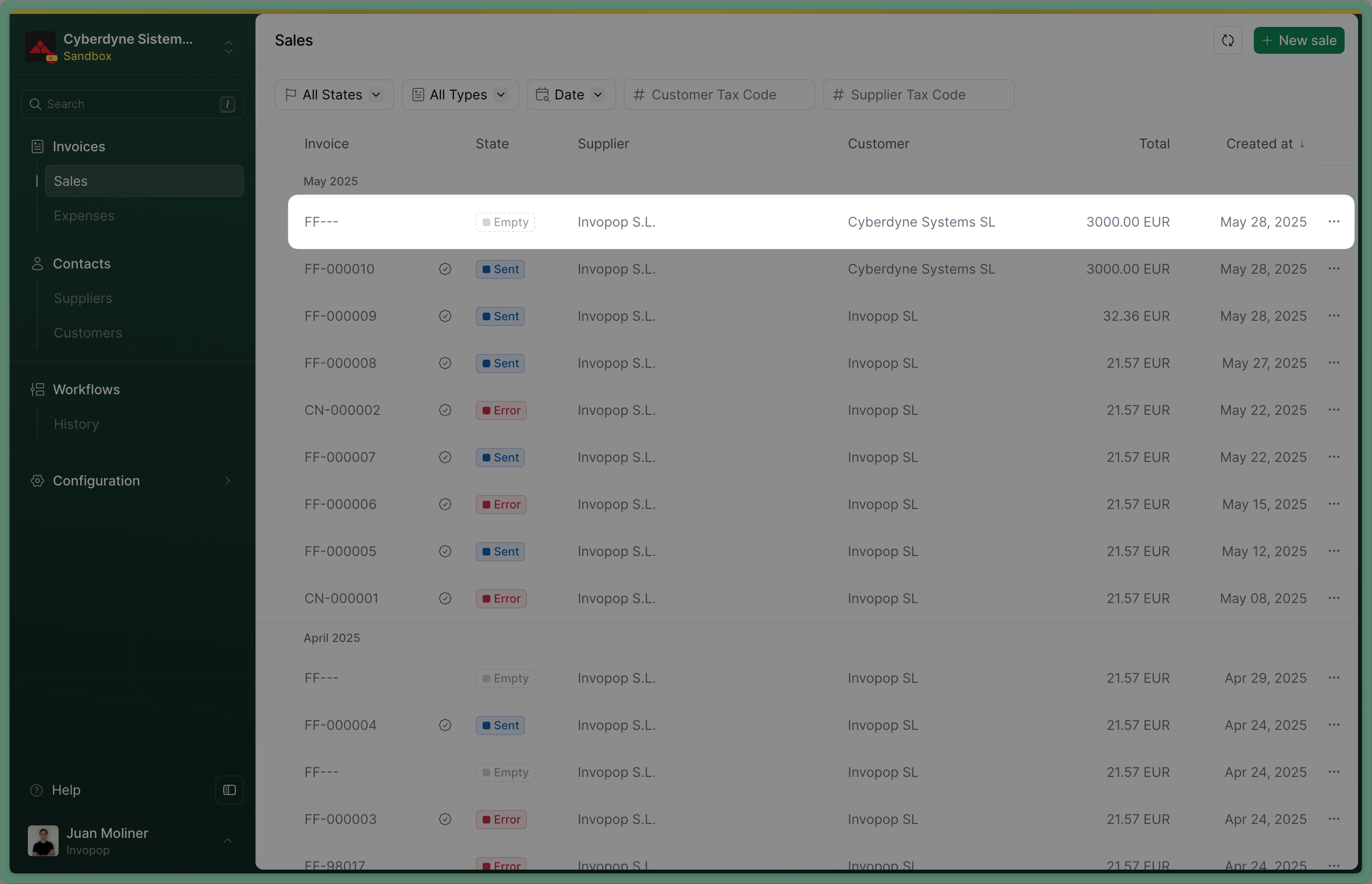
Empty invoice
Send the Invoice to the SII invoice workflow
workflow_id: use the Workflow ID of the SII issued invoice workflow created on setup.silo_entry_id: use the Silo Entry ID of the invoice you’ve just uploaded.
Sent when the workflow completes successfully.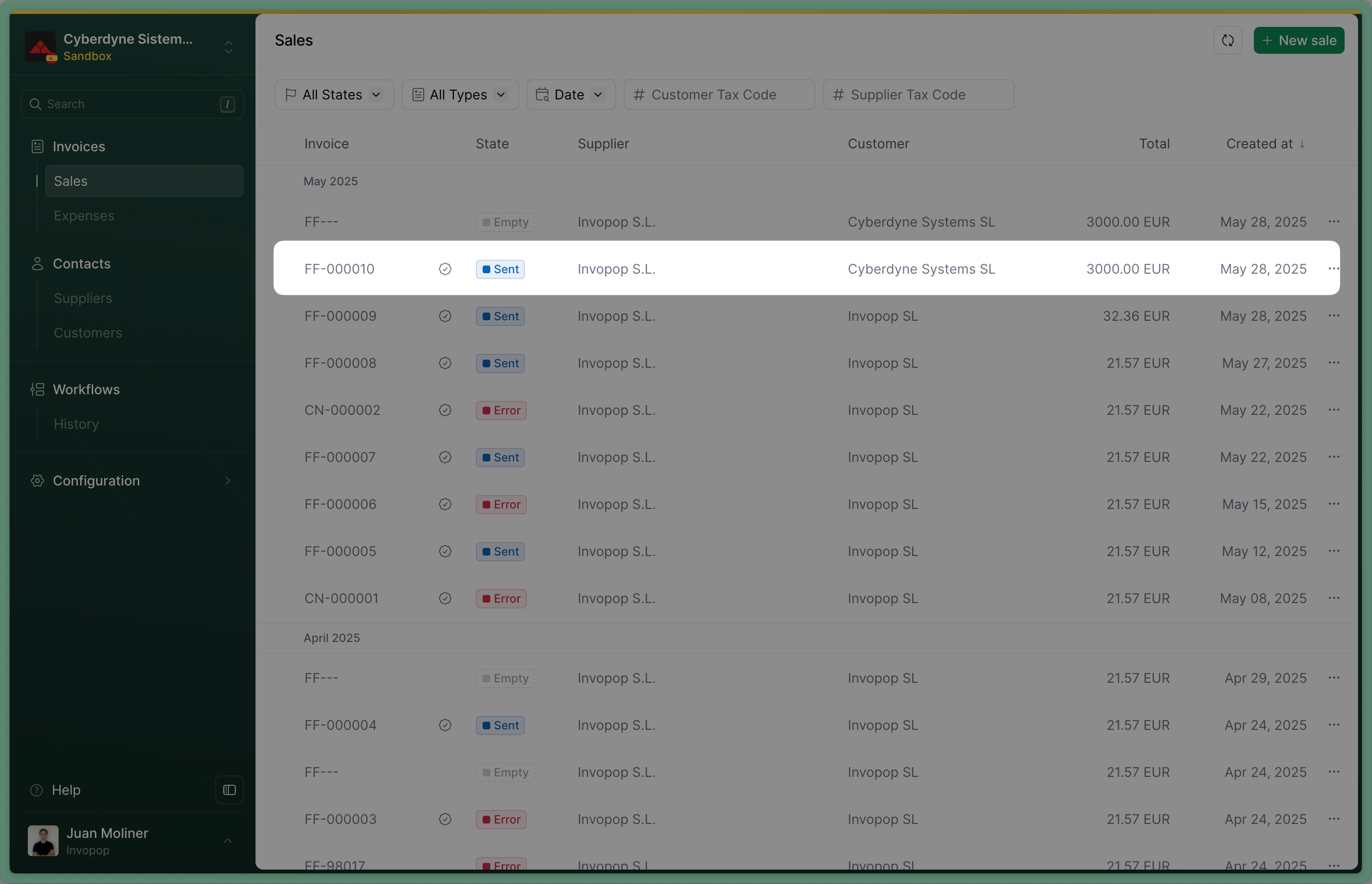
Sent invoice
Issue a credit note (Rectificativa por Diferencias)
In Spain, one way to correct an invoice is by issuing a credit note, known as a Rectificativa por Diferencias. An alternative method is to issue a Rectificativa por Sustitución, which involves creating a new invoice with the type corrective. The difference between the two is subtle but important:- A credit note adjusts the value of the original invoice.
- A corrective invoice replaces the original invoice entirely.
- Issue a credit note for €20, or
- Issue a corrective invoice for €80.
Upload a Credit Note
- Add the
es-sii-v1addon supplier: use the same supplier details as in the original invoicetype:credit-notepreceding: references the original invoice, within it, you must include:uuid: the UUID of the original invoice (optional but recommended)type: type of the original invoiceissue_date: the date of the original invoiceseries: the series of the original invoicecode: the code of the original invoice
Empty. If you’ve included the uuid of the invoice in preceding, you’ll see a link to the credit note we’ve just created in the Related tab of the invoice.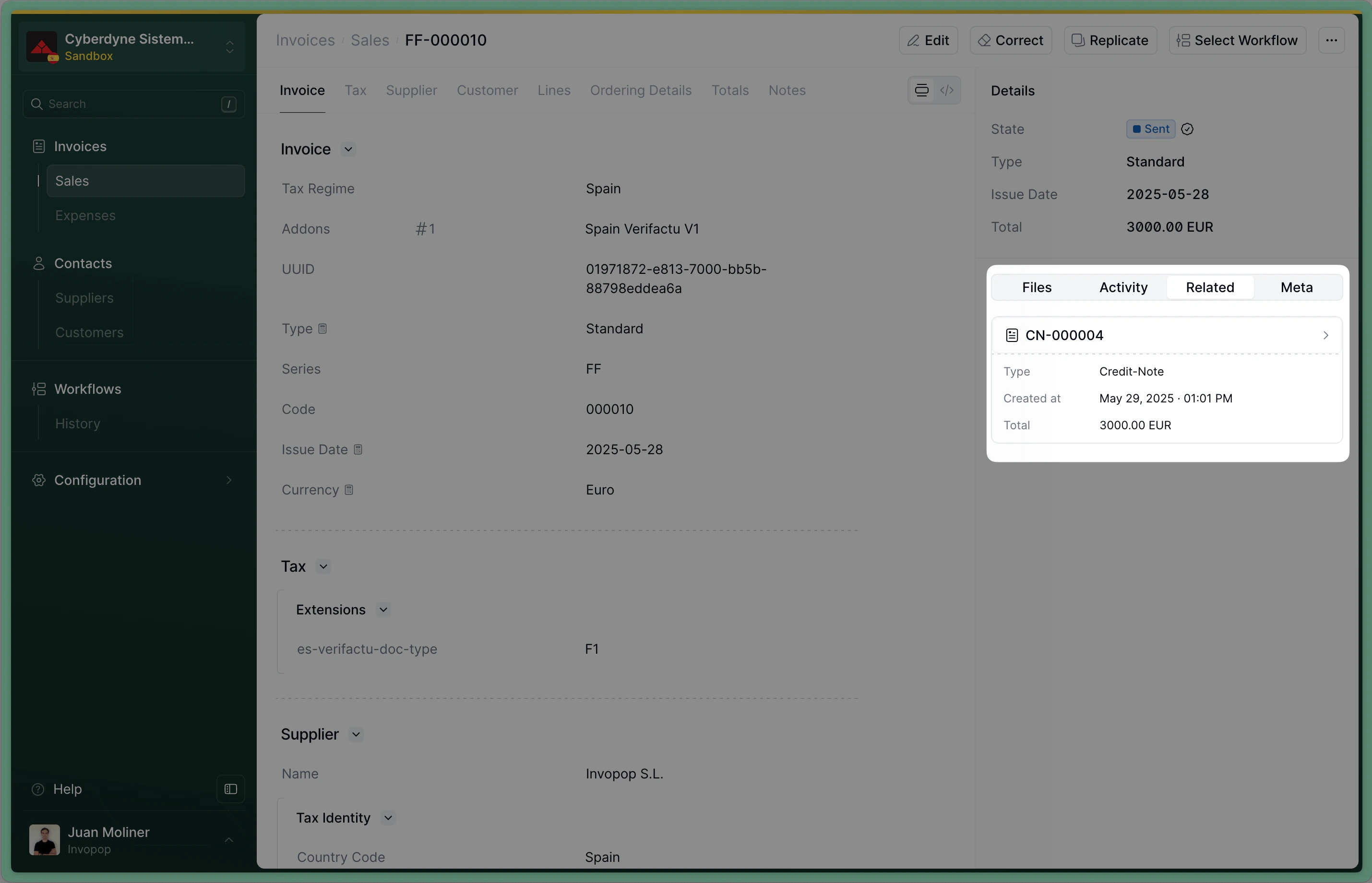
Related: credit note
Send the Credit Note to the SII invoice workflow
workflow_id: use the Workflow ID of the SII issued invoice workflow we created during setupsilo_entry_id: use the Silo Entry ID of the credit note you’ve just uploaded.
Sent when the workflow completes successfully.Issue a corrective invoice (Rectificativa por Sustitución)
Upload a Corrective Invoice
corrective. The process is very similar to uploading an invoice, use the Create an entry endpoint to upload a corrective invoice. Include an invoice object in the data, with these required fields:regime:ES- Add the
es-sii-v1addon supplier: use the same supplier details as in the original invoicetype:correctivepreceding: references the original invoice, within it, you must include:uuid: the UUID of the original invoice (optional but recommended)type: type of the original invoiceissue_date: the date of the original invoiceseries: the series of the original invoicecode: the code of the original invoicetax: the tax section of the original invoice, you can copy it from the original invoice
Empty. If you’ve included the uuid of the invoice in preceding, you’ll see a link to the corrective invoice we’ve just created in the Related tab of the invoice.Related: corrective invoice
Send the Corrective Invoice to the SII invoice workflow
workflow_id: use the Workflow ID of the SII issued invoice workflow we created during setupsilo_entry_id: use the Silo Entry ID of the corrective invoice you’ve just uploaded.
Sent when the workflow completes successfully.Record a received invoice
Upload a Received Invoice
- Add the
es-sii-v1addon customer: Use the details of the party you’ve registered before.
supplier and customer fields.B2B Standard Received Invoice
B2B Standard Received Invoice
- The supplier is the business that has issued the invoice to you.
- The customer is your business (previously registered).
Empty.Send the Invoice to the SII received invoice workflow
workflow_id: use the Workflow ID of the SII received invoice workflow created on setup.silo_entry_id: use the Silo Entry ID of the invoice you’ve just uploaded.
Sent when the workflow completes successfully.You can verify that the PDF was generated by clicking on the invoice and selecting the PDF from the “Files” tab.FAQ
Should I send credit notes with positive or negative values?
Should I send credit notes with positive or negative values?
type set to credit-note.Where do I find Spain-specific GOBL documentation?
Where do I find Spain-specific GOBL documentation?
es-verifactu-v1, es-tbai-v1, es-facturae-v3.What is the deadline for submitting invoices to SII?
What is the deadline for submitting invoices to SII?
How do I correct an invoice already submitted to SII?
How do I correct an invoice already submitted to SII?
A1) referencing the original entry, rather than by deleting and re-sending. In practice, after fixing the underlying GOBL document, run the SII workflow again — Invopop detects that a previous submission exists for the same invoice and emits the modification record automatically.🇪🇸 Invopop resources for Spain
🇪🇸 Invopop resources for Spain